
























In today’s business world, dynamic changes and increasing competition compel organizations to improve their processes continuously. In response to these challenges, SAP Signavio has become a comprehensive tool that supports companies in managing their key business processes. SAP Signavio, part of the SAP Signavio Process Transformation Suite, enables effective process modeling, analysis, and optimization. The SAP Signavio Process Transformation Suite consists of several components, each serving a specific yet always essential role in the transformation.
In this article, I will provide more information on using SAP Signavio tools, present a step-by-step process for using SAP Signavio Process Manager, and explain how to create a BPMN diagram.

SAP Signavio Process Collaboration Hub
The SAP Signavio Process Collaboration Hub serves as the central entry point for all business processes and connects its components:
- Process and journey modeling
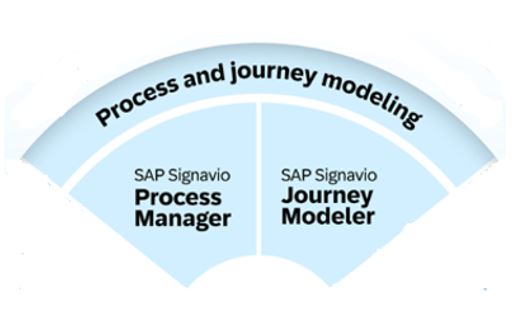
- SAP Signavio Process Manager – a tool that helps teams create and manage business processes collaboratively. It enables users to understand how current processes operate and envision how they might look in the future.
- SAP Signavio Journey Modeler – it enables creating visual maps that illustrate the stages of processes, such as those customers go through during purchases. This allows companies to identify what works well and what needs improvement.
- Process analysis and mining
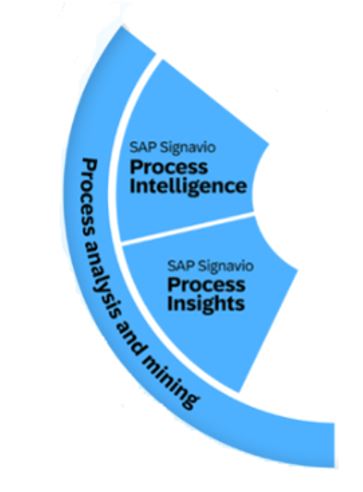
- SAP Signavio Process Insights – it focuses on assessing process performance in SAP ECC or S/4HANA. This tool enables automated, advanced process data extraction from SAP in less than 24 hours. It allows for the analysis and comparison of data at the organizational level. Its primary goal is to identify improvement opportunities, provide recommendations, and conduct benchmarking (understood here as comparing the organization’s process or product performance with industry best practices or competitors).
- SAP Signavio Process Intelligence – offers advanced analytics that enables detailed tracking and visualization of process performance in real-time. It facilitates deeper data analysis, identification of bottlenecks, and areas for improvement within a broader context, regardless of the ERP platform.
- Process governance and automated execution
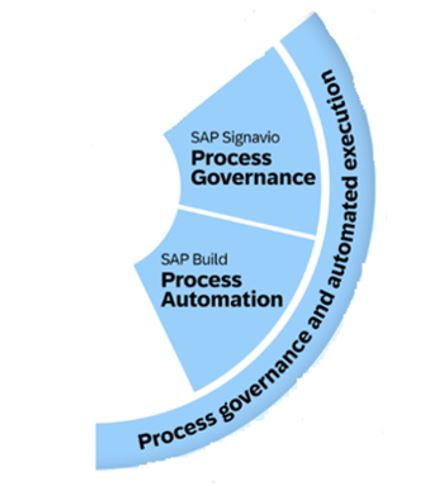
- SAP Signavio Process Governance – enables workflow management.
- SAP Build Process Automation – enables the creation and implementation of business process automation using RPA bots (software that automates routine, repetitive tasks in business processes. These bots simulate human actions within application interfaces, resulting in increased efficiency, reduced errors, and time savings).
SAP Signavio Process Manager
SAP Signavio Process Manager is a modern tool for managing business processes. In every organization, each employee plays a key role in executing specific methods, which is essential for proper functioning. This can be compared to a sports team: the absence or unavailability of one player can hinder the entire team’s performance if the remaining members cannot step in.
Therefore, effective process management requires precise role coordination, collaboration skills, and knowledge documentation for future reference.
Business process modeling is not just about creating aesthetically pleasing visualizations; it is primarily a process aimed at building a shared understanding. Processes must be ‘alive’ to inspire employees to improve them continuously. Only in this way does daily work become easier, smoother, and faster, which translates into increased efficiency for the entire organization.
SAP Signavio Process Manager supports business process management by offering a range of features, such as:
- Creating and editing process models transparently and intuitively using a graphical editor.
- A central repository of objects for reusing the same business definitions across all processes.
- A folder structure for storing and searching processes.
- Reporting that aggregates all information related to selected processes.
- Version control for processes in case changes need to be reverted.
- Diagram comparison (current version vs. future version).
- Commenting for feedback and collaboration on processes.
- The ability to record additional information about processes and tasks.
Modules
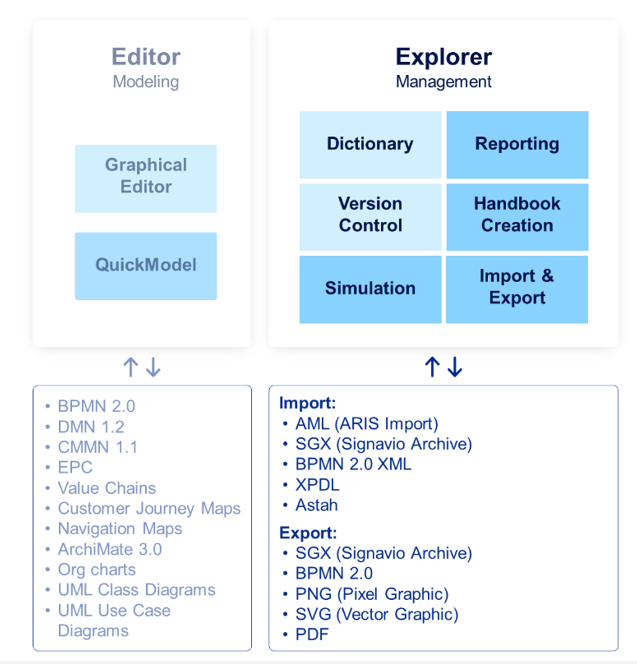
SAP Signavio Process Manager is divided into two distinct modules: Editor and Explorer. The former focuses on creating diagrams, while Explorer manages the folder structure, allowing for organization and easy access to created folders and documents.
Logging in and using SAP Signavio Process Manager
In this part of the article, I will show you how to use SAP Signavio Process Manager and how to create a BPMN diagram. The tool requires only a browser and an Internet connection—installing any software is unnecessary.
To access the 30-day free trial version, you need to register at Signavio Business Transformation Suite – Registration | Signavio
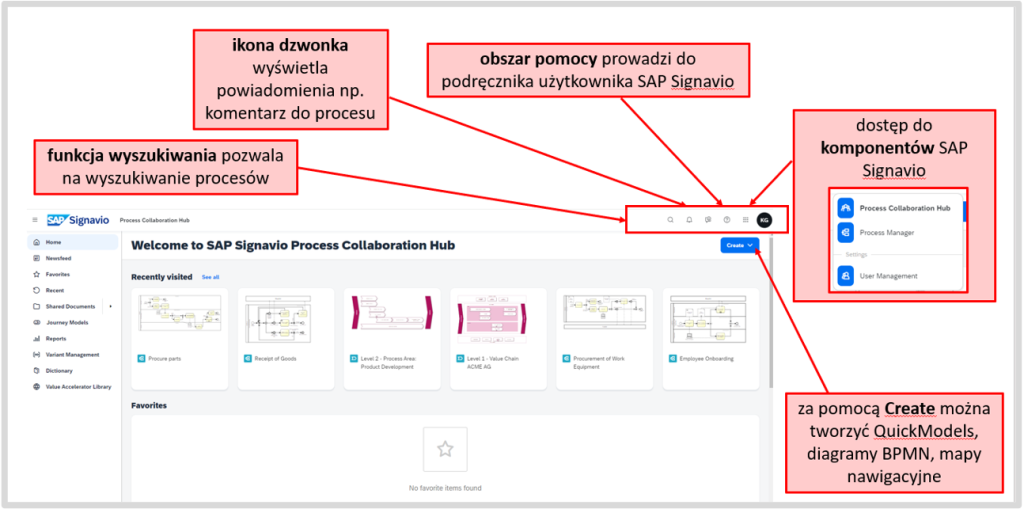
Once logged in, the system will redirect you to the main page of the SAP Signavio Process Collaboration Hub. The screen is divided into three sections: on the left side, there is a menu (1); in the middle, access to Favorites, shared, and recently visited diagrams (2); and in the upper right corner, a search and help area (3).
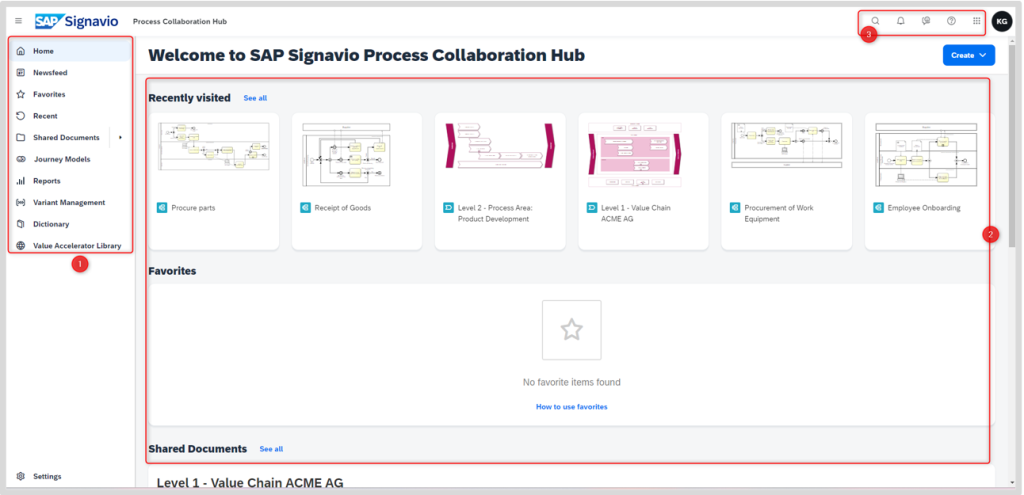
In the upper right corner, using the icon “9 dots,” we can navigate to all components of SAP Signavio. Select Process Manager.
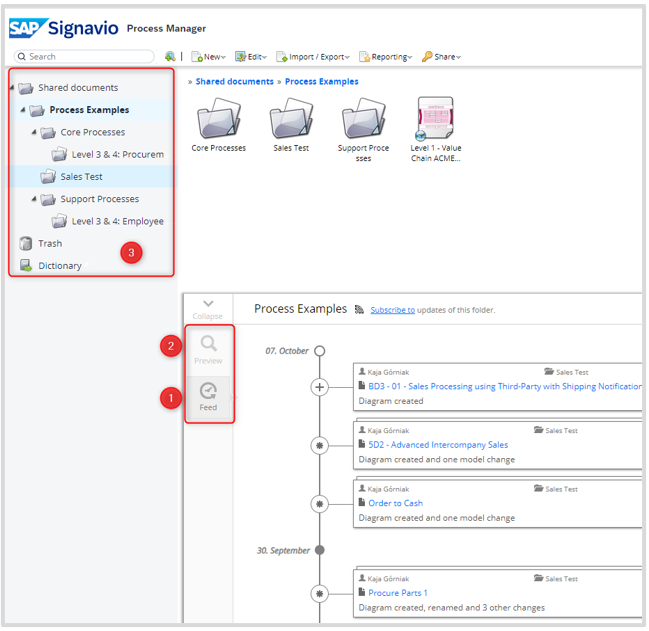
All shared folders and diagrams are visible on the main screen (3). By selecting the “Feed” option (1), the user can verify what has been changed or created and when. Choosing the “Preview” option (2) allows for a preview of the selected diagram.
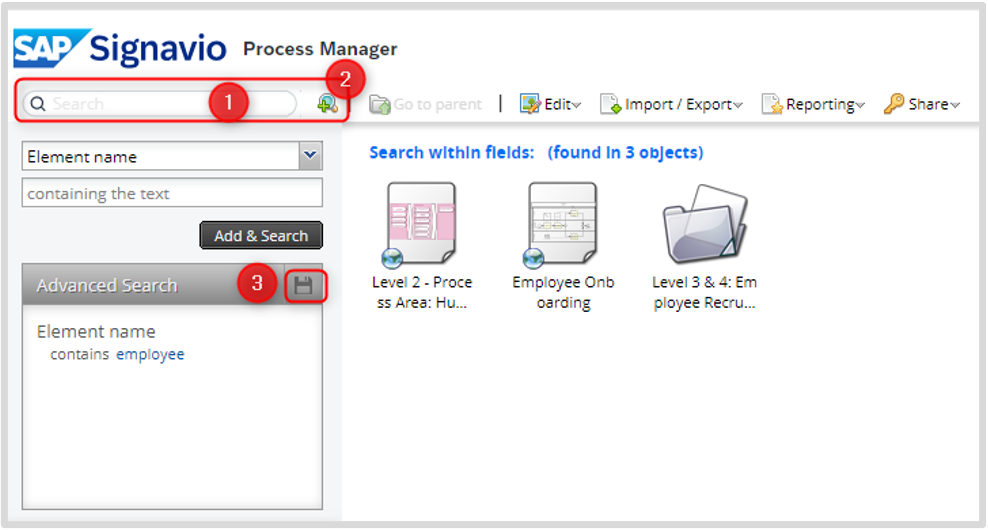
The Search Function (1) allows for quick diagram searches. Using Advanced Search (2), you can narrow down the search to a specific attribute at the diagram or element level. You can save your selections using the Floppy Disk icon (3) for later use.
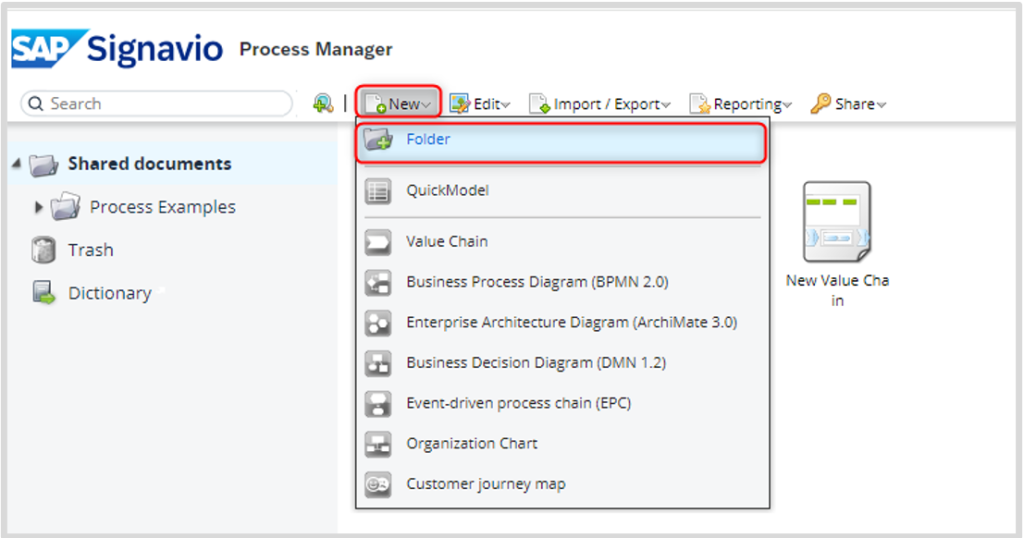
Folders allow for the organization and structuring of the workspace. To create a folder, select New and then Folder. When creating your own folder structures, you can draw inspiration from typical business structures, such as a functional structure where each department has dedicated processes or a divisional structure focusing on dedicated processes for specific products.
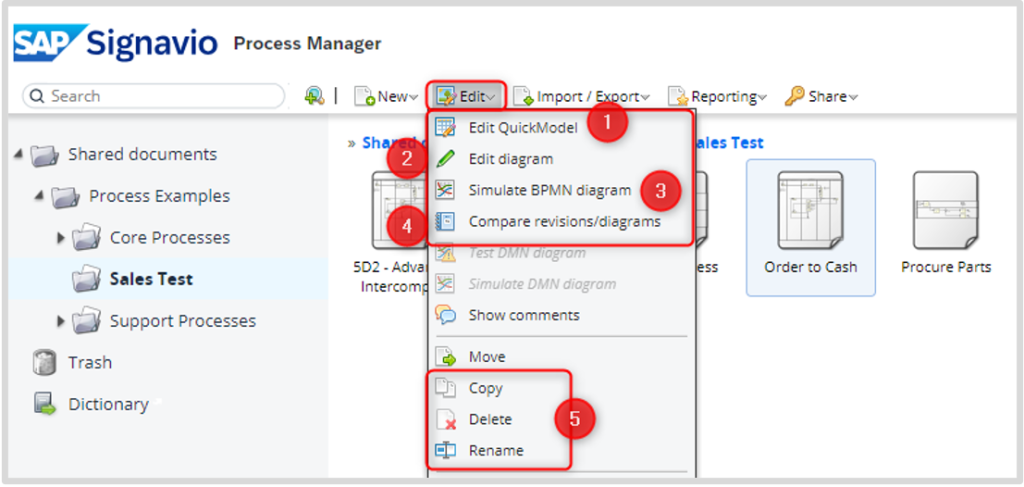
Users have access to four different editing modes. To edit a diagram, select it and then choose the appropriate option:
- (1) Edit QuickModel – allows for editing the diagram in a tabular format,
- (2) Edit diagram – enables editing in the graphical editor,
- (3) Simulate BPMN Diagram – a simulation option available for BPMN and DMN diagrams,
- (4) Compare revisions/diagrams – allows for comparing two versions of the same diagram, showing all changes made, including modifications, deletions, and additions, and comparing two different diagrams, which facilitates the identification of differences.
Additionally, users can copy and delete diagrams and change their names (5).
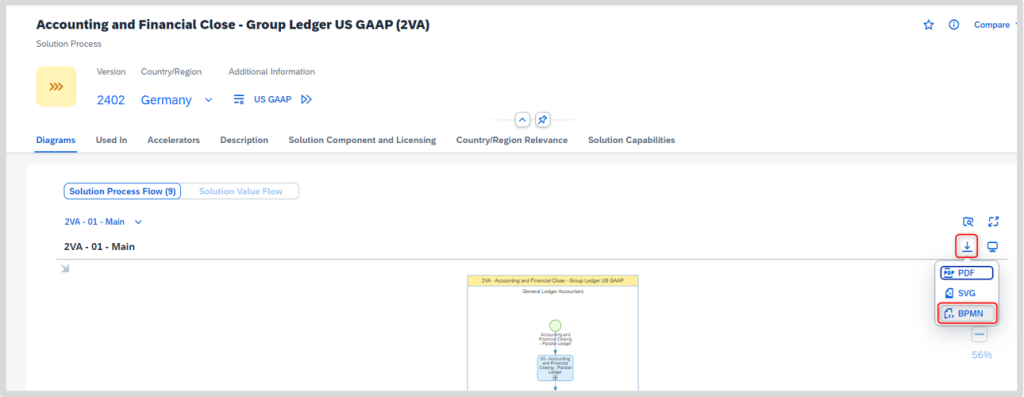
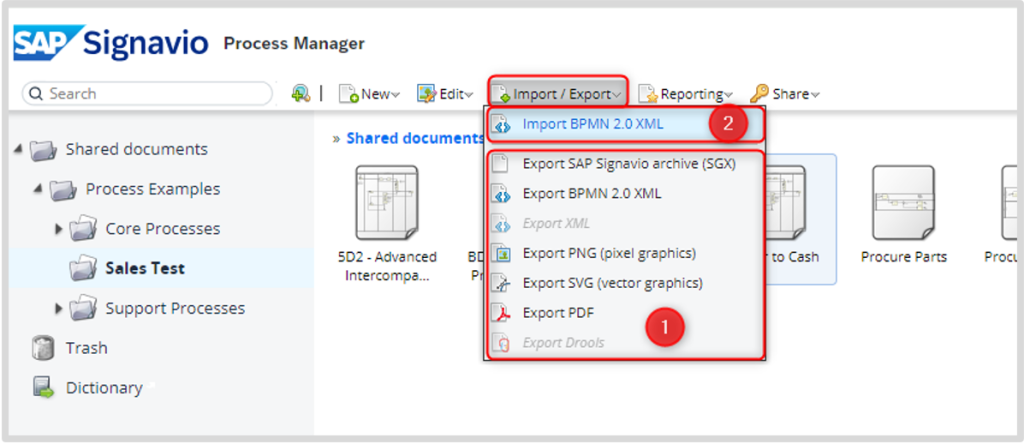
We can download diagrams in various formats using the Export function (1) (PDF, XML, SGX, PNG, SVG). With the Import capability (2), users can import diagrams like those from Best Practices. To do this, you must download the diagram in BPMN format and then select BPMN 2.0 XML.
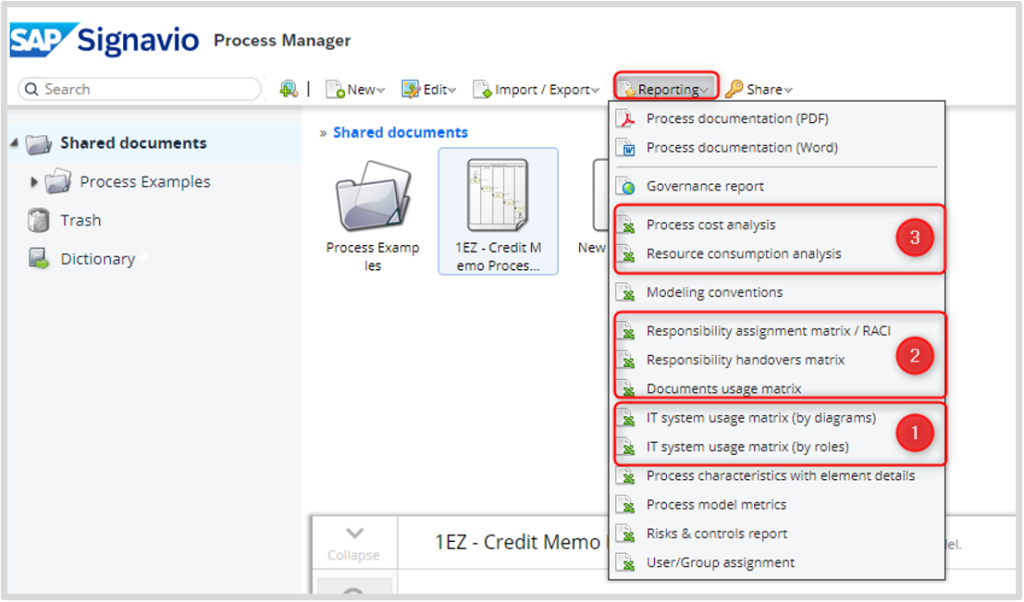
The Reporting Menu enables the creation of various types of reports about diagrams. This function allows one to analyze the hierarchy of processes offline, facilitating effective collaboration with decision-makers and analysts regardless of their familiarity with the BPMN model.
Reports help answer questions such as:
- (1) In which processes and activities do we use which IT systems?
- (2) Who is responsible for which task?
- (3) Can we reduce costs, and where? How much does a specific task cost, and how long does it take?
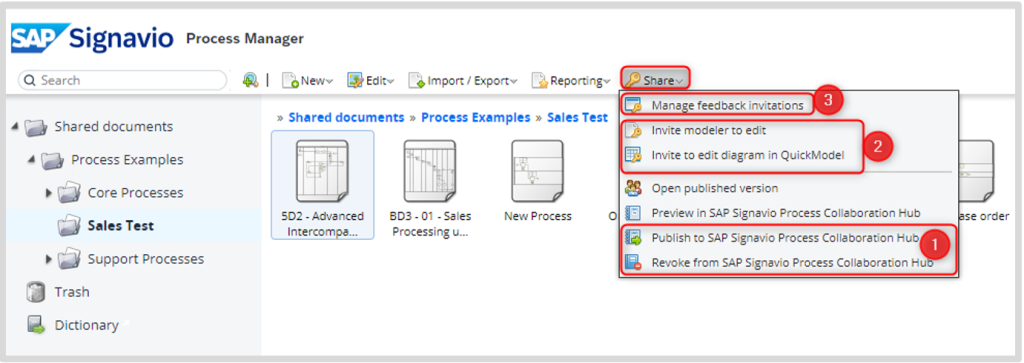
Using the Share Menu, users can:
- share diagrams (1),
- invite others to edit (2),
- manage access permissions (3).
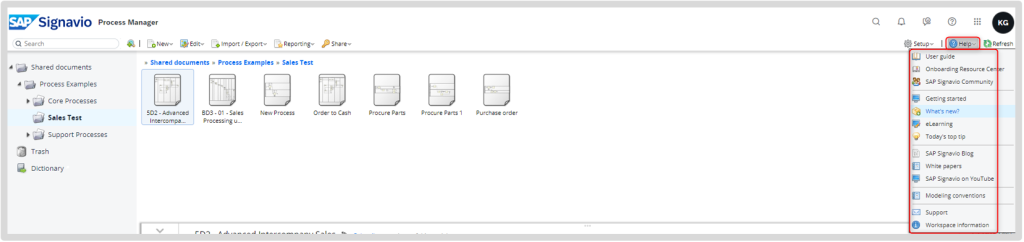
In the Help Menu, we can find a wealth of useful information, updates, and news about SAP Signavio products.
The QuickModel – an easy way to start Business Process Modeling
QuickModel is an innovative tool within SAP Signavio Process Manager that enables users to model business processes without requiring prior knowledge of BPMN notation (Business Process Model and Notation is a widely accepted standard for modeling business processes in organizations worldwide. It is a graphical notation (a set of symbols/shapes for elements) for modeling processes, standardized by the Object Management Group (OMG)). Users can create processes by filling out a table with information about the specific process. The tool automatically generates a diagram that is compliant with BPMN 2.0, which can later be edited in the advanced graphical editor.
Although QuickModel is accessible to a wide range of users, it is important to note some limitations: the tool allows only one main path to be defined in the diagram. Any branches (gateways) and subprocesses must be added in the graphical editor after creating the basic model.
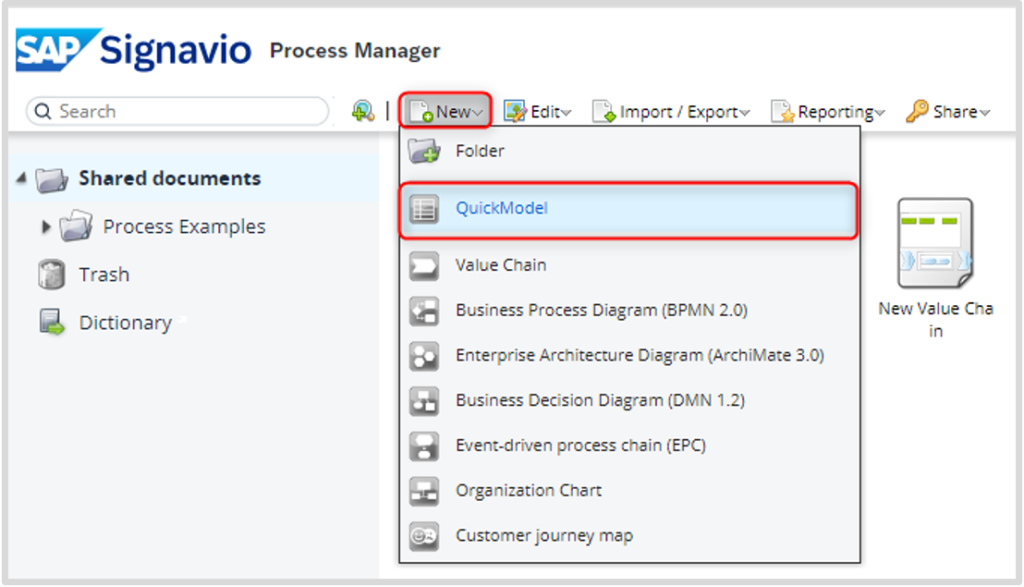
To create a Quick Model, select the New tab and then QuickModel.
On the internet, one can find hundreds of definitions, but we can all agree that a process must have a beginning and an end – along the way, there are tasks to be completed. A business process can be compared to an assembly line, where tasks are carried out at different stages to create a finished product.
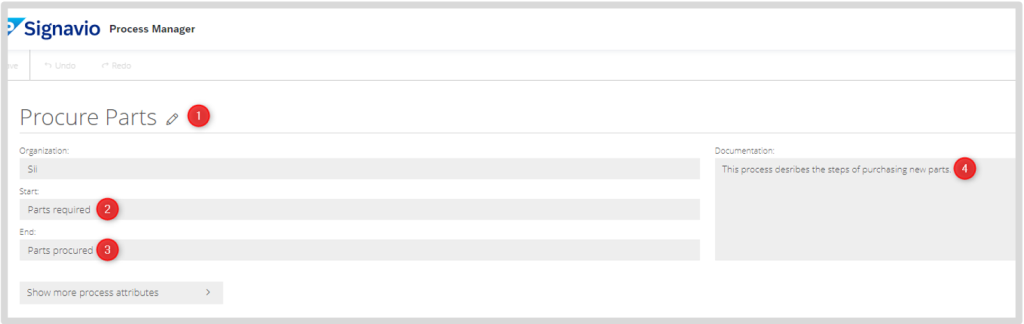
We start by defining the process name (1). We input the so-called trigger (2) and the outcome of the process (3), which will start and end our process. In the Documentation field (4), we can include a description of the process. Changes should be saved using the floppy disk icon (each save creates a new version).
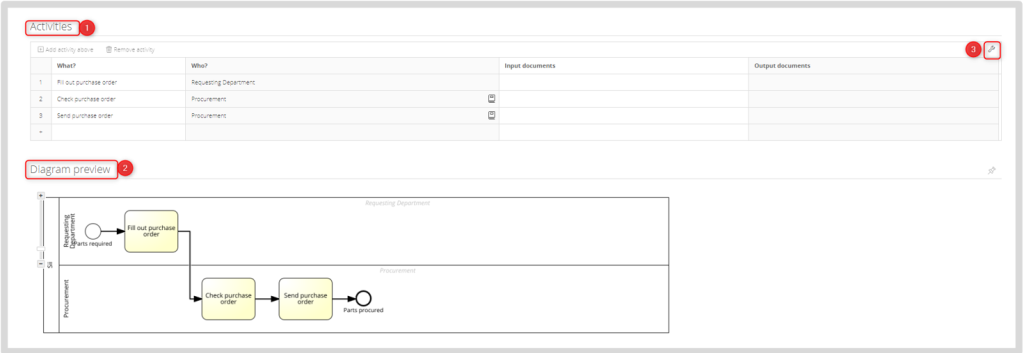
In the Activities section (1), we fill in the appropriate fields in the table that describe the individual steps of the process. After completing these fields, the system automatically generates a diagram in the Diagram Preview section (2). The columns in the table are configurable, allowing us to customize them to our needs (3).
After creating the so-called “happy path,” we can edit our diagram by adding more advanced steps using the Graphical Editor.
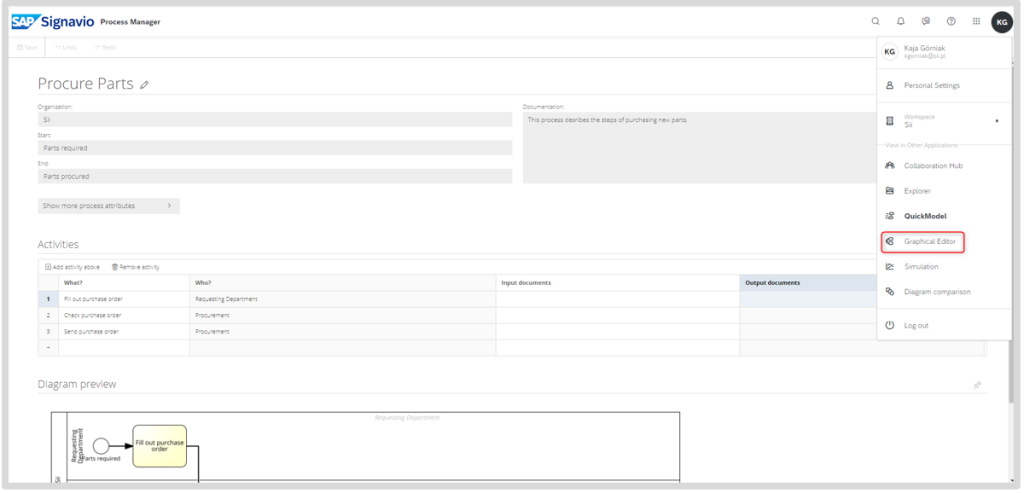
The system will redirect us to the graphical editor, where we can expand our diagram. All changes made will also be updated in the tabular version of the QuickModel.
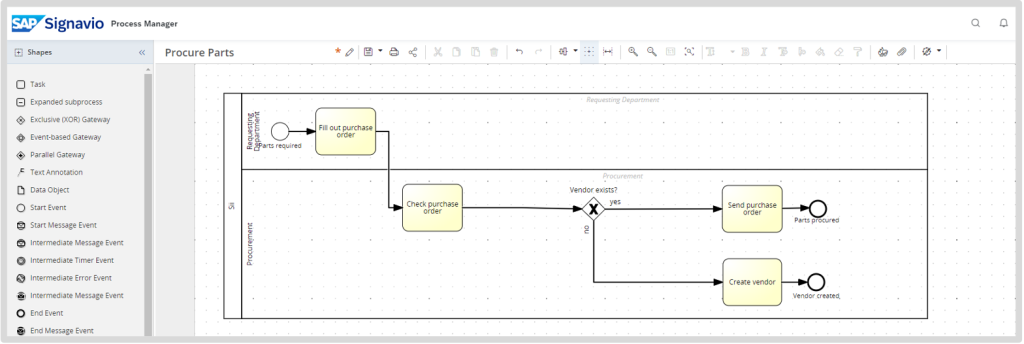
Graphical Editor – effective BPMN 2.0 Process Modeling
In the graphical editor, numerous features are available to facilitate the modeling process. On the left side, there are graphical elements (1) that allow us to represent tasks involved in the process, interactions among participants, and sequence flows (using a “drag and drop” principle). On the right side, additional attributes are available – we can attach documents or input extra information to the diagram (this option is also configurable), depending on the use case and workspace settings.

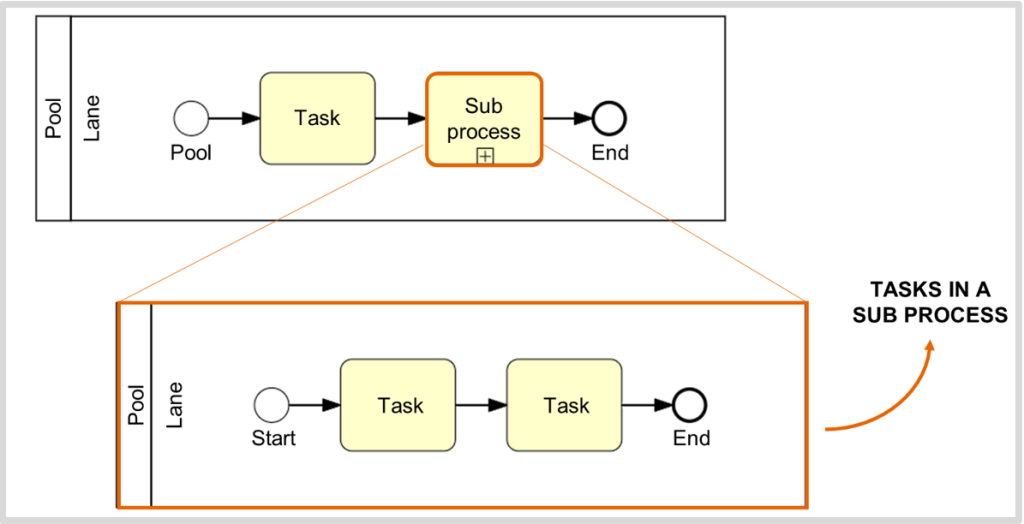
In many cases, certain tasks require greater detail or involve various actions, which may lead to the omission of smaller subtasks or their consolidation into a single action. These subtasks can be moved to a new diagram to maintain order in the main process and focus on its key aspects. In the case of a collapsed subprocess, indicated by a plus sign at the bottom, users can explore the related model.
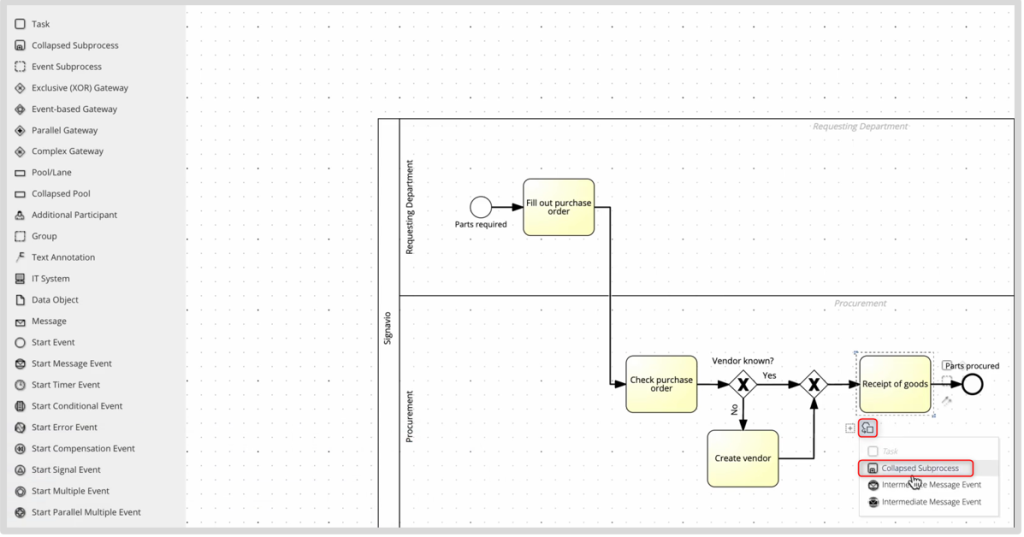
To add a subprocess, click on the desired element and then select Collapsed Subprocess.
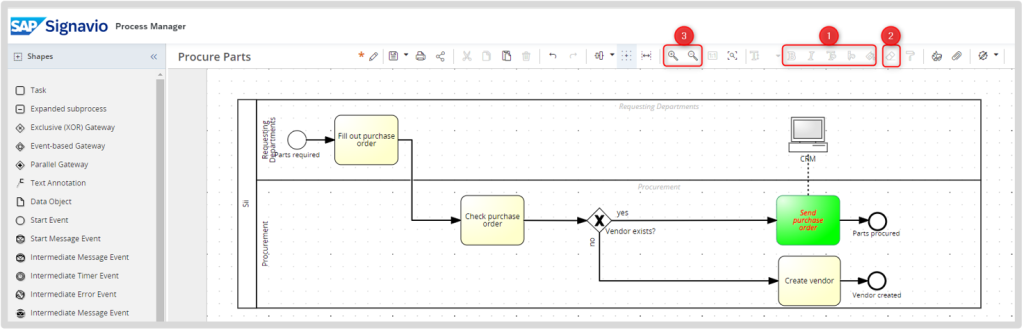
To highlight certain elements, we can use standard formatting options, such as font style and size and color changes (1). To revert to the default style, the formatting button in the menu bar should be used (2). In more complex models, the zoom-in and zoom-out options can help us get a better overview of the entire process (3).
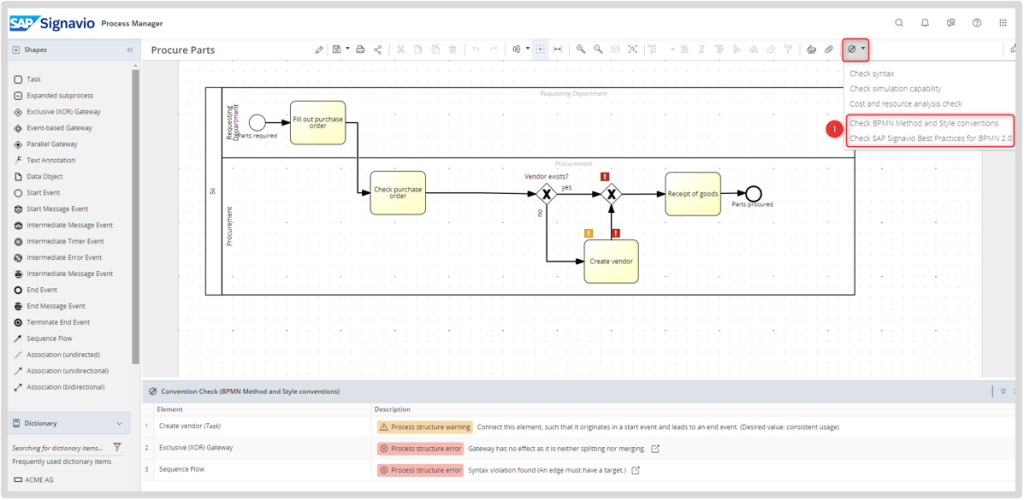
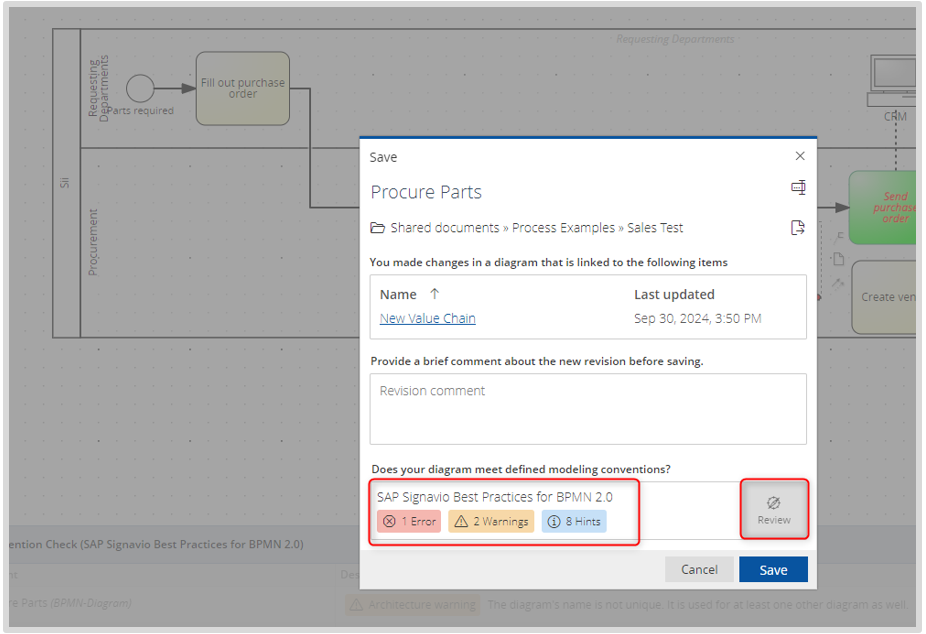
When saving the diagram (or by selecting Check BPMN Method and Style Conventions / Check SAP Signavio Best Practices for BPMN 2.0) (1), depending on the configuration, the editor will automatically identify any violations of BPMN standards, such as naming style inconsistencies and missing attribute values. After selecting Review, a list of errors is available, allowing for quick navigation to the relevant elements with a single click.
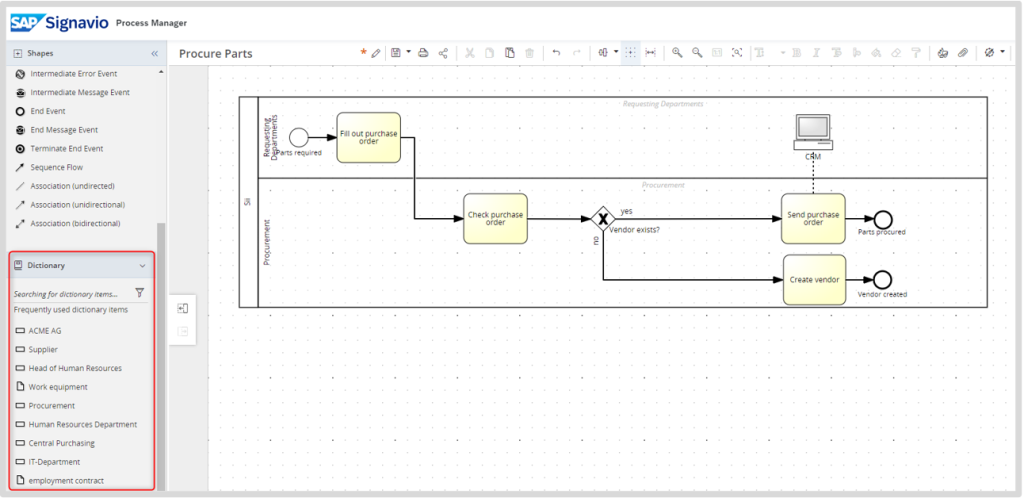
Organizations should establish internal modeling conventions to ensure consistency and clarity in process modeling. For example, consistently using the same terms for roles, systems, and processes is crucial. This approach helps avoid misunderstandings and facilitates communication among various stakeholders. On the left side of the screen, there is a Dictionary, which serves as a central repository for managing recurring information about processes. Each entry in the Dictionary represents an object relevant to at least one process, allowing for easy tracking and organization of information.
How to effectively manage feedback?
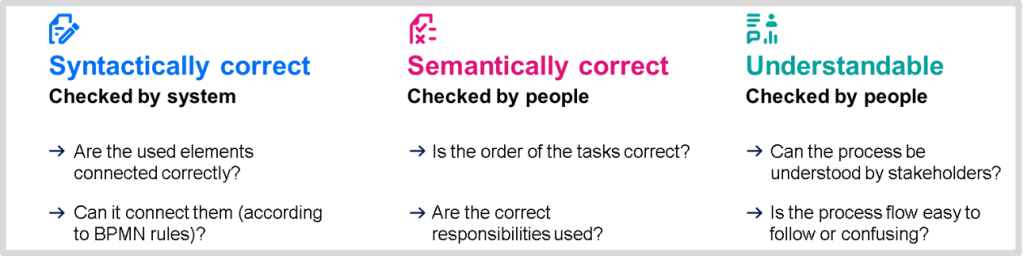
Even if all model elements are connected syntactically correctly, this does not guarantee that the process operates as intended. Modeling systems cannot verify whether tasks are in the correct order or if roles and departments are appropriately named. This leads us to the issue of semantics – the model must be technically correct, understandable, and consistent within the business context.
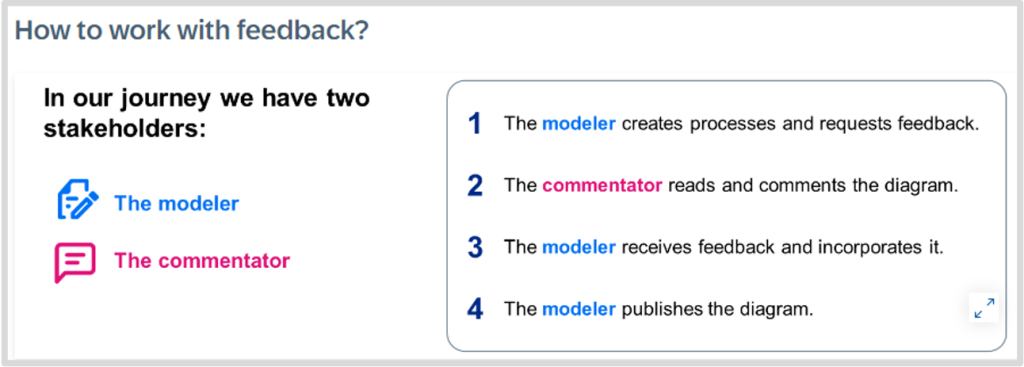
Involving different individuals in the modeling process brings diverse perspectives, which is invaluable in creating accurate and effective models. Each team member contributes their knowledge, experience, and understanding of the processes, allowing for a better grasp of the organization’s complexities. Effective communication among team members is crucial for achieving the intended goals, and feedback from stakeholders is essential for identifying potential issues and shortcomings in the models.
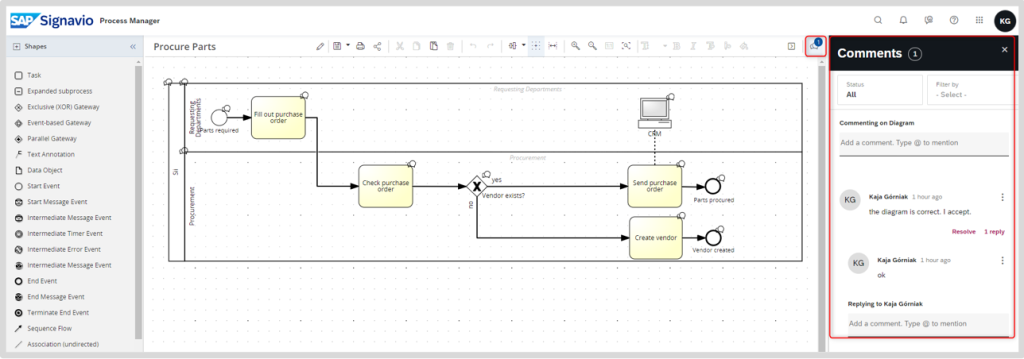
The commenting and feedback function in SAP Signavio Process Manager is available on the right side of the screen. Comments can be sorted by status (open, resolved, rejected).

Sii x SAP
As an SAP Silver Partner, we have many years of experience in implementing ERP solutions in companies of various scales and process complexities.
SAP offeringSummary
SAP Signavio Process Manager is a valuable tool enabling organizations to effectively model, analyze, and optimize business processes.
Advantages:
- An intuitive user interface accessible through a web browser, facilitating ease of use.
- Real-time collaboration that allows teams to work together on process models.
- Advanced analytical features that assist in identifying bottlenecks and inefficiencies in processes.
- Compliance with the BPMN 2.0 standard, ensuring consistency and recognized norms in modeling.
Disadvantages:
- High licensing and implementation costs can pose a barrier for smaller organizations or those with limited budgets.
- Despite the intuitive interface, fully utilizing the tool’s capabilities may require learning time, especially for more advanced features.
- Organizations may need ongoing support for process management and model updates to maintain long-term efficiency.
Useful links
- Training offered by SAP e-Learning: Introduction to Business Process Modeling in Practice (BPMN 2.0)
- Article on BPMN Modeling: Notacja BPMN modelowanie procesów podstawowe kształty
- Demo Access SAP Signavio Process Manager: SAP Signavio Process Explorer v3.1 | Model | Hub | SAP Signavio
Bibliography
The article was based on the SAP training “Introduction to Business Process Modeling in Practice BPMN 2.0.”
***
If you are interested in the SAP area, be sure to also take a look at other articles by our specialists 🙂













Leave a comment