
























Monday, 9:05 a.m. Three urgent requests land in Teams, a dozen emails are waiting for a response, and a status meeting is coming up in an hour. A task list quickly starts to form: in a notebook, in a message to yourself, in your head. Two days later, some of those items disappear beneath the next wave of messages, and the task board starts to function more like an archive than a plan.
Does it have to be that way?
One tool, many levels of complexity
Depending on how a team works, Planner can take different forms – from a simple board available within Microsoft 365 to a more project-focused approach in Planner Premium. It supports both everyday operational work and more complex project initiatives involving more tasks, more dependencies, and more people contributing to delivery.
In both cases, what matters most is how the plan is managed. A good plan helps teams stay on top of priorities, makes blockers visible, and allows a status update to be prepared in just a few minutes – without digging through Teams threads and email. Tasks keep coming in during the week, priorities shift, one item waits for a decision, and another suddenly becomes urgent. If the plan is not updated on an ongoing basis, it quickly ceases to serve its purpose. Instead of supporting the team’s work, it becomes just another place to check – or one that everyone forgets about.
This is exactly where Copilot starts to show its real value – when the plan needs to keep pace with a changing reality.
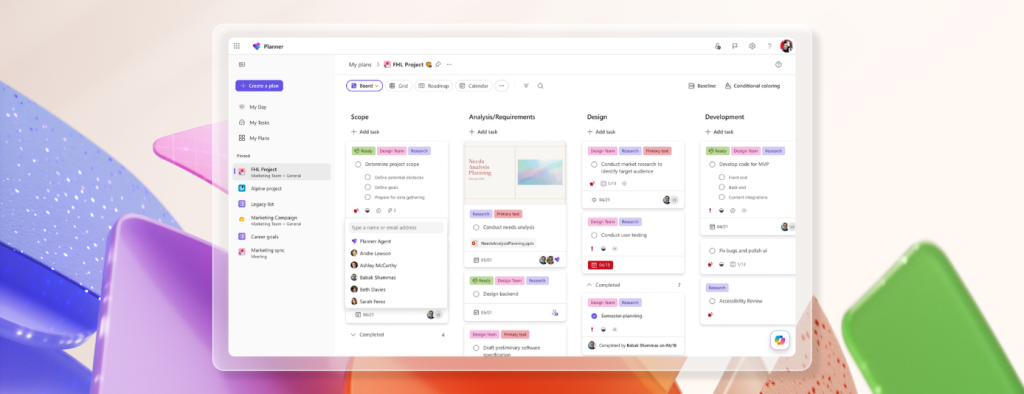
Copilot in Planner: support for organizing teamwork
Copilot is especially useful where time is usually in short supply: turning scattered information into a meaningful structure. It can suggest an initial version of a plan based on notes, emails, or a description of an initiative. It helps break broad topics down into specific steps and makes it easier to answer operational questions more quickly – what needs to be done today, what is slipping, and where the team may be overloaded.
In day-to-day work, its value is especially evident in tasks that, at first glance, are too broad to assign in practice. Topics such as “prepare the communication,” “complete the rollout,” or “organize onboarding” can easily stretch out over time because it is difficult to assess what they actually involve. Copilot helps break them down into smaller, actionable steps – the kind that can be assigned to specific people and tracked realistically. As a result, the plan becomes a working tool more quickly, rather than a collection of generic labels.
Copilot is also useful in the moments that usually create the most organizational tension: the minutes just before a status meeting, or when someone suddenly asks, “Where do we stand?” Instead of manually clicking through the board, searching for delayed tasks, and checking in with the team, it is possible to get a concise summary in a short time. That summary shows what has been completed, what is in progress, where blockers have appeared, and which areas are starting to be at risk. It shifts the conversation away from gathering information and toward making decisions.
Importantly, Copilot does not “guess” based on generic assumptions. It works within the same context that the team already uses in Planner – tasks, statuses, links between items, and changes over time. This means the plan does not need to be manually rewritten or additionally described just to prepare a status update or report. Today, these capabilities are available to users with a Microsoft 365 Copilot license in both basic and premium Planner plans. In practice, they become especially valuable when the number of tasks, dependencies, and stakeholders begins to create a real burden for the person coordinating the team’s work.
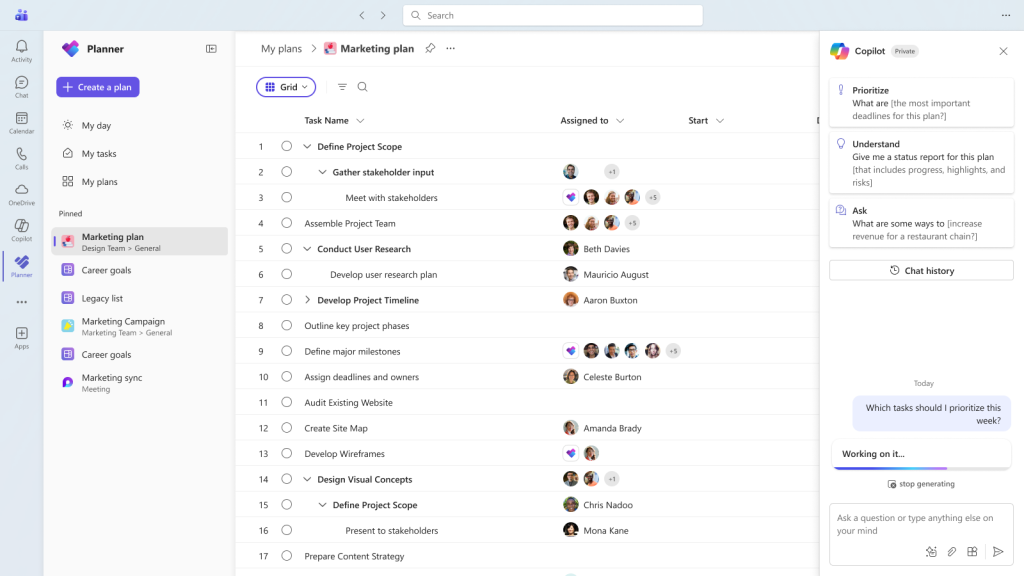
From an empty board to a plan in 30 minutes – a realistic team scenario
Let’s take a typical situation: a team is asked to prepare an internal communication about a process change. The deadline is short, several decision-makers are involved, and the information is scattered – some agreements were made in a meeting, some arrived by email, and the rest appeared in Teams comments. Formally, the “project” does not exist yet, but the work has already started.
At this point, Planner usually opens as an empty board, and the biggest problem is not the lack of tasks but the lack of a starting point. What should actually go into the plan? How should the work be divided so that everything does not have to be rewritten manually and the context is not lost?
Action plan
The first few minutes are spent gathering the input material – meeting notes, a description of the change, and the key points from an email. Instead of manually turning this into a task list, Copilot can suggest an initial working structure for the plan. It will not be perfect, but it is usually coherent enough to show which areas of work already exist: content preparation, consultations, publication, and feedback collection. That allows the plan to take shape more quickly than the usual “where do we even start?”
The next stage is clarifying what initially looked like one large task. “Prepare the communication” begins to split into specific steps that can be assigned and estimated. Copilot helps not only with the breakdown itself, but also with spotting gaps – for example, by identifying points at which a process owner’s decision or content approval will be needed. The plan starts to reflect the real flow of work.
Once the structure is in place, priorities begin to matter. Not everything has to be done at the same time, and some tasks naturally block the next ones. At this stage, Copilot helps the team look at the plan as a whole: identify what should happen first, which elements are critical now, and which can wait. This makes team discussions easier and helps people quickly align on a shared priority, rather than trying to work on everything at once. After about 30 minutes, the team has something it did not have before: a shared point of reference. A plan that shows what is happening, who is working on what, and where issues may arise. Just as importantly, that same plan can be used immediately to prepare a short status update – without searching across multiple tools or creating a separate reporting version.

Sii x Microsoft
As a Microsoft Cloud partner, we offer a range of solutions that optimize processes, improve collaboration and enable businesses to achieve agility augmented with AI.
Microsoft offeringWhere does this approach work well?
This scenario shows that Copilot does not replace team decisions, but it does shorten the path from chaos to a structured plan. As a result, Planner can genuinely support day-to-day work, regardless of the initiative’s scale.
Planner with Copilot does not impose one fixed way of working. It can support teams at very different stages – from simply organizing ongoing tasks to coordinating more complex projects.
The biggest difference is usually felt when the amount of work and information simply becomes too great. Tasks come in from several places at once, priorities keep changing, and preparing a status update can take longer than the conversation itself. In those conditions, the plan needs to remain flexible and up to date above all else.
If tasks seem spread across several tools at once and the plan increasingly serves only as a source of status updates, this way of working can help restore clarity.
Teams can also benefit from Sii specialists’ support, who help organizations make better use of Planner and Copilot in their day-to-day work.













Leave a comment