


Data hierarchy is popular in business applications – product catalogs, company organizational structures, and project or task management often require multi-level representation. Application users need tools for clear and intuitive navigation through nested structures. Presenting data in a readable, multi-level, hierarchical view is one of the biggest challenges that Canvas Apps developers face.
End users expect functional and intuitive interfaces that allow for quick understanding and navigation of data. Presenting information as a multi-level list can significantly improve readability and work efficiency. Hierarchy allows the user to better understand the context, dependencies, and level of detail. Unfortunately, despite the multitude of ready-made components, Canvas Apps do not offer a ready-made solution for flexible data visualization in this form.
Therefore, you need to create your own solutions, which you can learn more about in this article.
Methods of visualizing data in a hierarchy
The most popular method of visualizing data in a hierarchy is using nested galleries. This relatively easy-to-implement solution allows for the presentation of a 2-level data structure.
Example of use:
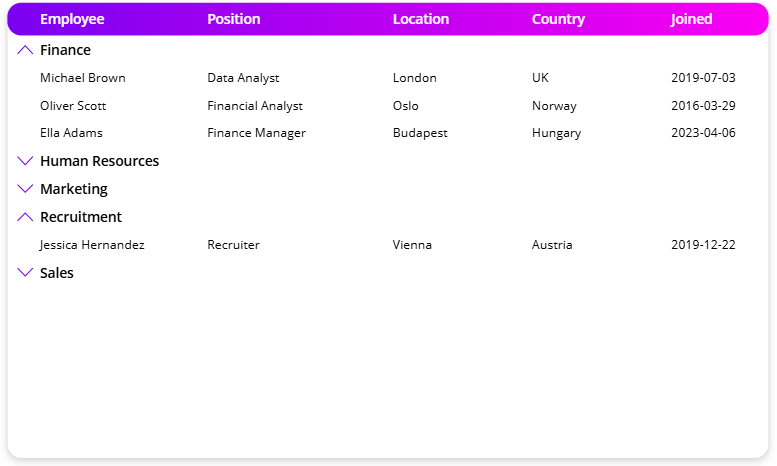
The main gallery shows departments, and each record contains a sub-gallery with specific department employees.

Sub-gallery data source:
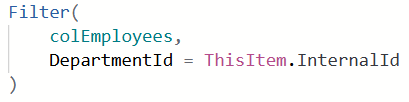
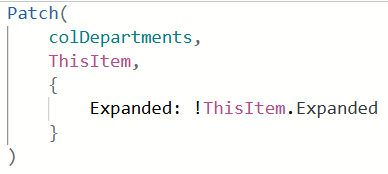
By making the visibility of nested galleries dependent, for example, on the value of the parent record (group), which is updated after clicking the icon, you can also relatively easily implement expanding/collapsing sections.
Sub-gallery visibility:

Action on selecting an icon:
Icon type:

Due to its low complexity, this solution is very popular and often used. This type of visualization can be a good solution for a two-level hierarchy structure and an optimal amount of data.
Disadvantages of the solution
However, it is associated with limitations and problems, such as low efficiency and a lack of flexibility. The internal gallery loads data separately, which significantly affects the system’s efficiency and speed. Attempting to create additional data nesting will only intensify this effect and slow down the application even more.
Another, this time less obvious, disadvantage of this solution is the height limit of a single gallery record. Because each of the nested galleries is part of the records of the parent gallery, it is subject to a height limit of 5000. This is especially important when displaying a larger number of records with data.
A hierarchical view in a single gallery
Implementing a hierarchical view in a single gallery, using a key that allows for dynamic filtering and arranging data in a multi-level structure, can be a workaround for most of the above-mentioned limitations and problems.
Defining keys
The most important element of creating this type of view is the correct construction of the key, based on which data in the gallery will be sorted. Defining the level of nested records with data in the context of the entire multi-level structure may also be helpful. It is best to build the key with unique information within a specific data instance. GUID may be the best choice, because in addition to uniqueness, it has an additional advantage that is very helpful in this case – a static number of characters.
Defining keys for individual records can be done in several ways.
One of them is to use a loop that will rotate until all records have been processed. Since Canvas Apps do not have a built-in function similar to those in popular programming languages (e.g., ‘ do until’ or ‘while’), a workaround is to use the self-triggering ‘toggle’ control. This trick can be used in this situation and any other situation, e.g., when we would like to use the logic of a loop that executes until a certain condition is met.
Example:
The task table contains relationships between data records from the same table. Task creators can define the order of their execution in this way, split them into specific implementation stages, group them, etc. Each record has a unique identifier (GUID) stored in the ‘InternalId’ column. The ‘ParentInternalId’ column can also optionally define the identifier of the parent task.
This is an example of the presentation of data relationships reflected in many data instances and business cases.

Due to the lack of a defined number of data nesting levels and the number of records located at these levels, we will use the ‘toggle’ control to generate the key. To implement easy and controlled action to trigger the code, we can use a variable that should be used in the default value of the toggle and the appropriate place (e.g. ‘OnVisible’ of the screen) define its value to ‘true’ (call), and then to ‘false’ (deactivation and waiting for the next call).
Setting the value of a variable:

Default toggle value:

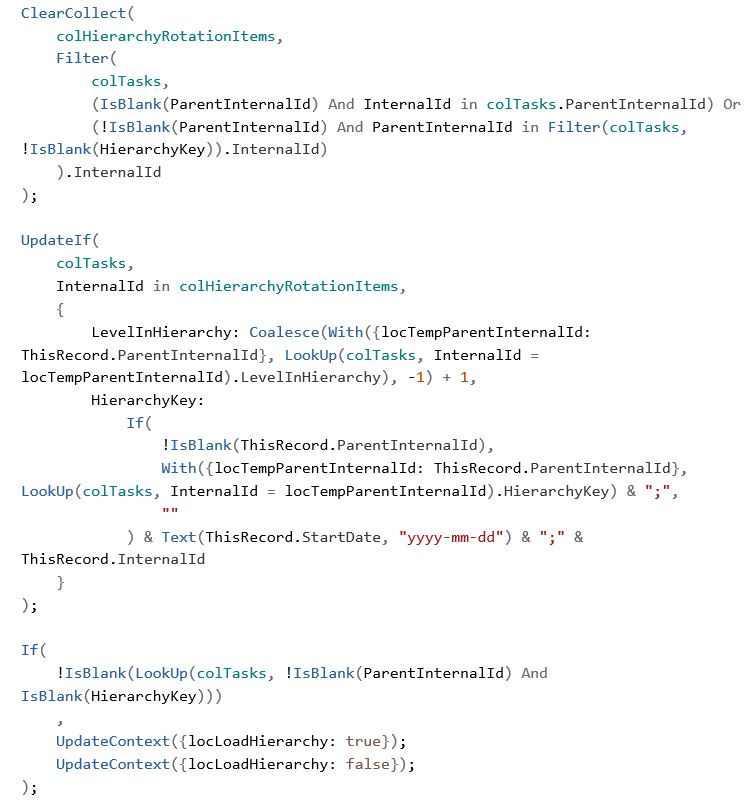
The code executed during the toggle operation should be defined in the control’s OnCheck property. The idea is to update the values in the columns with each record’s key and nesting level.
The sequence of value updates will occur from the highest level (items without a defined parent) and downwards (the most nested items). For this purpose, a collection with the data subject to update is created at each loop rotation. The number of loop rotations (toggle code calls) equals the number of data nesting levels in the hierarchy structure. After that, the key value and nesting level are updated.
The key value is created from the identifiers of the parent records, the processed record, and optionally from a value that allows for the implementation of additional sorting (in this case, the start date). The nesting level value is a numeric value, where 0 means a non-nested record. An increase in these values means a greater degree of data nesting.
Finally, a check is made to see if there is still unprocessed data. If the condition is met, the toggle is reactivated. A negative value of this condition means the end of code execution.
Code executed during toggle activation:
Optionally, suppose the order of displayed records within the same instance is important (same level + same parent) when defining the key. In that case, you can include the column value by which the sorting is to occur.
It should be mentioned that the target sorting that will be implemented in the gallery is alphabetical. This is especially important when we expect sorting by a column with numeric values or dates. Regarding dates, it is a good idea to include the appropriate format (e.g., ‘yyyy-mm-dd’), as in the example above.
Numeric data may prove more problematic, but you can also create a solution for this type of information. You only need to estimate the maximum number of characters of the largest values. In the example below, it is 3 (i.e., the maximum estimated value is 999). You can increase this value by a margin to maintain a safety buffer.

In the gallery data source, you should refer to the prepared collection and consider alphabetical sorting by the key column.

To visualize the levels of record nesting in the gallery, you can, for example, use the value from the ‘LevelInHierarchy’ column and depend on it for the text offset and background color.
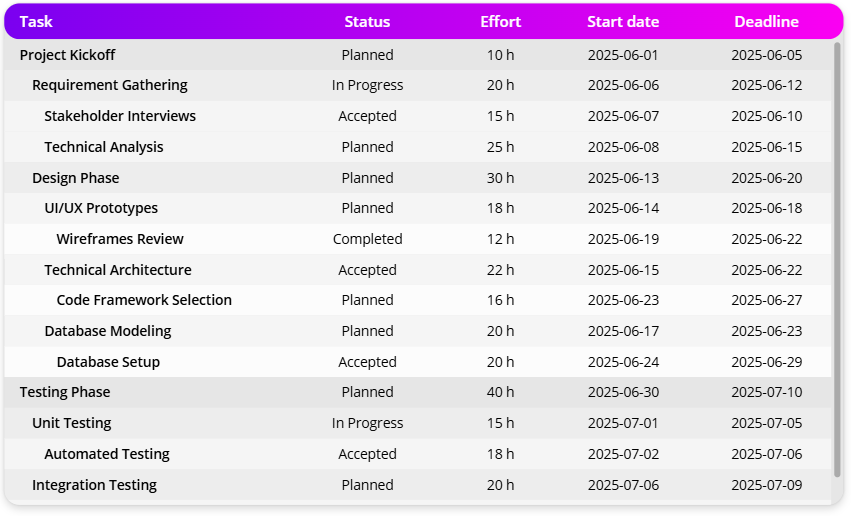
Text offset:

Background fill color:


Summary
The solution presented above enables the visualization of a multi-level data hierarchy without specifying the number of levels in advance. Due to its flexibility, it can be used in many scenarios. The solution also does not exclude the option of implementing expandable sections and filters.
It is important to remember to ensure an intuitive distinction between individual data instances, so that individual hierarchical structures do not randomly combine in the view. However, this visual aspect can be handled in many ways, depending on preferences.













Leave a comment