


Speedtest Tracker is a tool you can run on your own computer or server. It uses Ookla’s Speedtest tool to check your connection and is easy to set up with Docker.
Take control of your Internet
Why use this? It creates a timeline of your internet speeds and connection reliability. If your ISP isn’t giving you what they advertised, you’ll have the evidence to prove it.

What will we need? Obviously, first and foremost, a Raspberry Pi microcomputer.
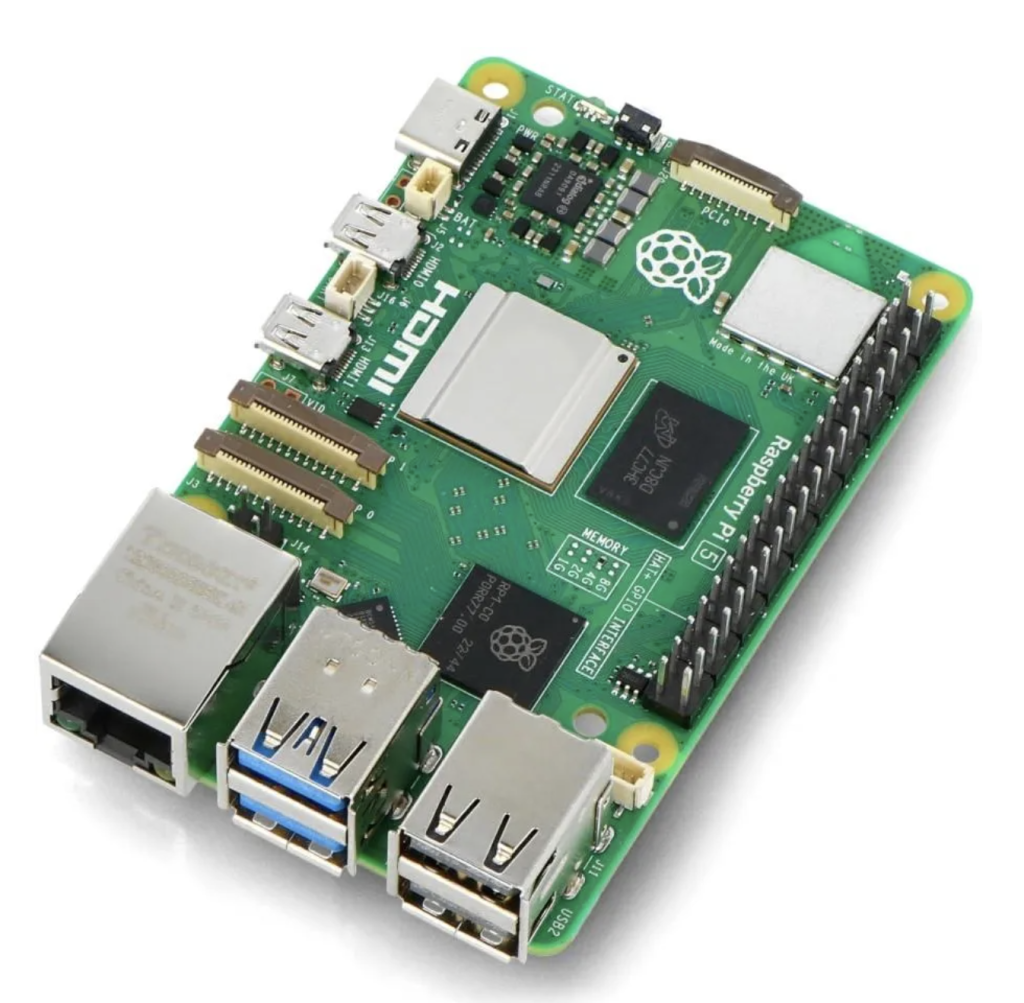
Raspberry Pi represents a product line of single-board computers developed by the Raspberry Pi Foundation to facilitate computer science education. Following its initial release in 2012, the platform has gained widespread adoption across academic research and maker communities, particularly in IoT development.
SpeedTest Tracker testing will be conducted on the Raspberry Pi 5 (8GB) model, which currently represents the optimal platform given its extensive capabilities, configuration, and performance options.
Getting started
It is assumed that the microcomputer already has the official Raspberry Pi OS [download] operating system and Docker software installed.
Note: Use Docker’s official installation script, which ensures you get the latest version optimized for ARM architecture:
# Download and run Docker's installation script
curl -fsSL https://get.docker.com -o get-docker.sh
sudo sh get-docker.sh

# Add your user to docker group (avoid needing sudo every time)
sudo usermod -aG docker $USER

# Reboot or log out/in for group changes to take effect
After rebooting, test it:
docker --version
docker run hello-world
Installation
Speedtest Tracker operates within a Docker container, allowing you to set it up on any system that supports containerization. The team at LinuxServer.io creates the container image – check the link for more details on how it’s built.
For our purposes, we will use Docker Compose. It is a quick and straightforward option.
Docker Compose is the preferred deployment methodology because it automatically orchestrates both the application container and the database instance.
Set up your application key
We’ll need an Application Key. It is required for encryption. Copy the key, including the base64: prefix, and paste it as your APP_KEY value. Run the following command to generate it:
echo -n 'base64:'; openssl rand -base64 32;
for example:
raspi@raspi:~/speedtest_tracker $ echo -n 'base64:'; openssl rand -base64 32;
base64:Duu3R6xTUjvIMXukcrhrJqI9P4lBXkTAZ5LdRlUok+Y=
Docker environment setup
While SQLite provides adequate functionality for typical deployments, the application also supports conventional RDBMS options, including MariaDB, MySQL, and PostgreSQL.
Create a docker-compose.yaml file:
The user’s PUID and PGID values can be obtained by executing the id $user command on the host system.
services:
    speedtest-tracker:
        image: lscr.io/linuxserver/speedtest-tracker:latest
        restart: unless-stopped
        container_name: speedtest-tracker
        ports:
            - 8080:80
            - 8443:443
        environment:
            - PUID=1000
            - PGID=1000
            - APP_KEY=base64:UmcouDGUgO[redacted]B22uEpVU=
            - DB_CONNECTION=sqlite
            - SPEEDTEST_SCHEDULE='*/30 * * * *'
            - APP_TIMEZONE=Europe/Warsaw
            - DISPLAY_TIMEZON=Europe/Warsaw
            - APP_DEBUG=false
        volumes:
            - /path/to/data/data:/config
	         #  - /path/to-custom-ssl-keys:/config/keys
To use your own SSL certificates, name them cert.crt (for the full certificate chain) and cert.key (for the private key), then mount them to /config/keys inside the container.
Environment variables
Configure the required PUID, PGID, and APP_KEY environment variables before running the application. In my case, I additionally configured the variable SPEEDTEST_SCHEDULE to run the application every half hour. See the Environment variables section for details.
Start the container:
raspi@raspi:~/speedtest_tracker $ docker compose up -d
Check if the container has been created as expected:
raspi@raspi:~/speedtest_tracker $ docker ps | grep linuxserver/speedtest-tracker
4472bdc8aea8   lscr.io/linuxserver/speedtest-tracker:latest   "/init" 10 months ago   Up 2 months   0.0.0.0:8080->80/tcp, :::8080->80/tcp, 0.0.0.0:8443->443/tcp, :::8443->443/tcp                 speedtest-tracker
First login
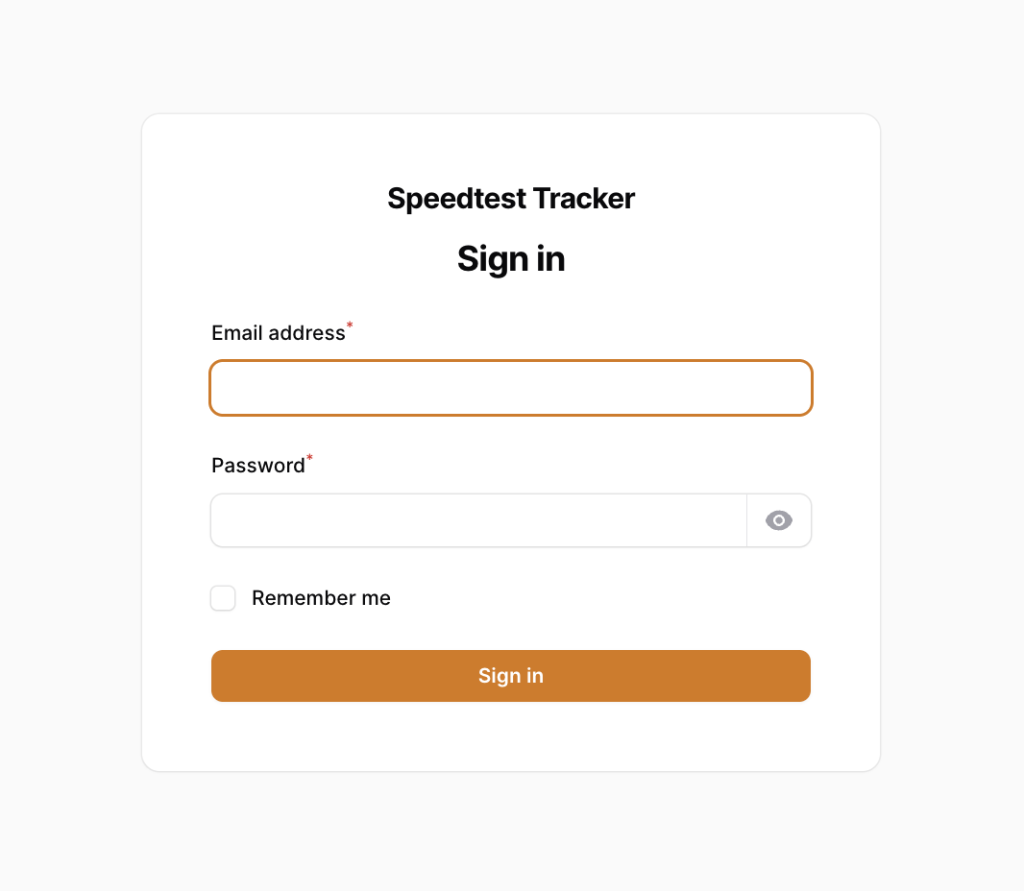
The default username and password are automatically created during initial container startup.
username: [email protected]
password: password
Use these credentials to log in and update the default user information once you’re inside the application.

IT Infrastructure
We will take care of your company's entire IT infrastructure 24/7, ensuring security, efficiency, and no downtime.
IT Infractructure offeringSummary
Speedtest Tracker is a self-hosted, open-source application designed to monitor the performance and uptime of your internet connection. It serves as a replacement for Henry Whitaker’s abandoned project of the same name, offering an improved UI and an updated feature set.
Core purpose
The primary goal of the application is to help users build a historical record of their internet speed and ISP uptime. This data is helpful for:
- Verifying if you are receiving the speeds advertised by your ISP.
- Identifying patterns in performance drops.
- Having documented proof of service issues.
Technical foundation
- Framework: Built using Laravel (PHP).
- Engine: Utilizes the Speedtest CLI by Ookla® for accurate measurements.
- Deployment: Designed to be easily deployed via Docker.
Key features
- Automated Testing: Schedule speed tests at specific intervals to track performance over time.
- Data Visualization: A dashboard that displays your speed history and ISP performance metrics.
- Integrations & Notifications: Supports various data integrations and notification systems to alert you if speeds drop below a certain threshold.
- Security: Includes built-in authentication, authorization, and encryption.
- API Support: Features an API for users who want to interact with their speed test data programmatically.
- Database Flexibility: Supports multiple database drivers.













Leave a comment