


In this article, I want to walk you through what Playwright currently offers in terms of AI. I also want to answer a question that keeps coming up at conferences and in conversations with teams: Is Playwright really a good open-source tool for UI test automation if we judge it through the lens of AI?
Let me set expectations up front. This is not a “type a prompt, get a framework” post. I’ll show you specific features, tell you what worked for me, and what still cost me a lot of experimenting. Every version, command, and flag in this text refers to Playwright 1.62.1, the stable release as of August 2026.
This part is the overview: what exactly you get, how to run it, and what it’s good for. Part two goes deeper – into the rules you have to write for the agents yourself, the token cost of MCP versus the CLI, the security side of pointing an agent at a real application, and debugging tests alongside a model.
What exactly does Playwright offer in the AI space?
As of today, there are four areas worth knowing:
- Playwright Agents – three subagents (planner, generator, healer) whose definitions you install with a single command.
- Playwright MCP – an MCP (Model Context Protocol) server that gives the model direct access to the browser.
- Playwright CLI – the newer approach, optimized for token usage.
- AI-assisted debugging – the “Copy prompt” button in the HTML report, trace viewer, and UI mode, plus the
--debug=cliflag and thenpx playwrighttrace command since 1.59, both built specifically for agents.
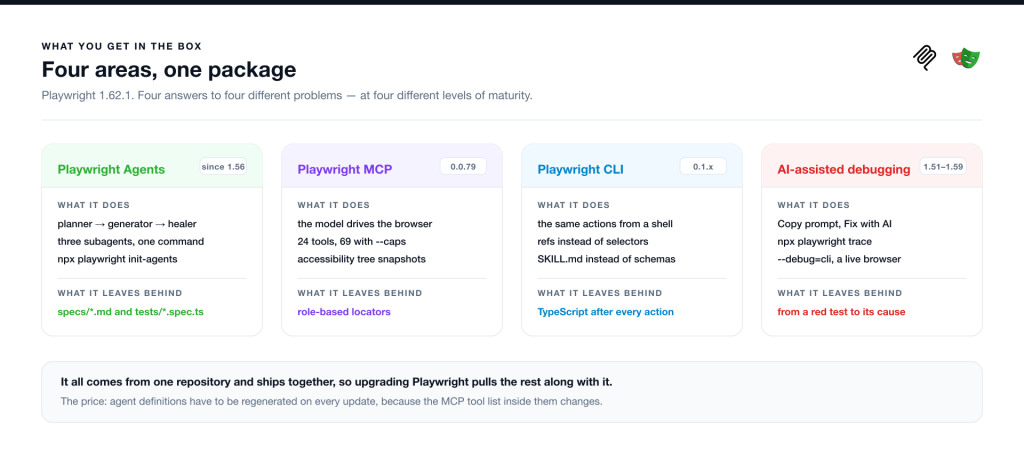
Each of these solves a slightly different problem. Let’s go through them one by one.
Playwright Agents
Playwright Agents is an interesting take on letting three subagents help with the day-to-day work of a test automation engineer. The feature landed in Playwright 1.56 and splits into three roles:
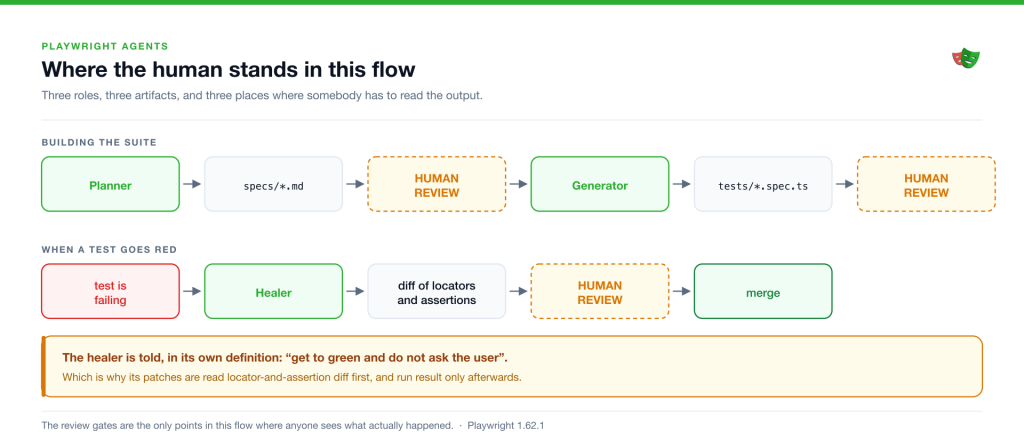
- Planner – explores your running application in a browser and produces a test plan in Markdown. You get a file with scenarios, preconditions, steps, and expected results. The important part: this is a human-readable artifact, so you can review and fix it before anyone writes a line of code.
- Generator – takes the approved plan and turns it into real
.spec.tsfiles. It doesn’t do this statically, off the source code; it executes the steps in a live browser and verifies locators as it goes. It also leaves// spec: and // seed:comments in the generated file, pointing at the scenario and the seed a given test came from. Small thing, but it makes the review much easier. - Healer – starts by running the whole test suite to establish which tests fail. It then replays the failing steps, inspects the current UI to locate an equivalent element or flow, suggests a patch, and re-runs the test until it passes or until guardrails stop the loop. If it decides the application is broken rather than the test, it should skip the test instead of sweeping the bug under the rug. The Playwright docs put it honestly: the healer’s output is either a passing test or a skipped one. One detail jumps out immediately: the healer gets no tools for clicking. Its list is page inspection, console, network, evaluate, locator generation, file search and editing, plus listing, running, and debugging tests. It fixes code, not interaction.
Let’s take the magic out of this right away. An agent definition is a plain Markdown file: a metadata header, a set of instructions, and a list of MCP tools that the agent is allowed to call. That header also carries a model: field, and in 1.62.1, all three definitions have sonnet written into it. Which means the choice of model isn’t entirely yours to make for the client; it’s a value in a file – one you can edit, as long as you remember that the next init-agents will write it back.
How do you run it?
Setup is trivial. You need Playwright 1.56 or newer and one command in your project directory:
npx playwright init-agents --loop=vscode
# albo
npx playwright init-agents --loop=claude
The --loop flag tells Playwright which client to generate agent definitions for. In 1.62, it accepts six values: claude, codex, copilot, opencode, vscode, and vscode-legacy. If you check this in the docs, you’ll only find four — copilot and vscode-legacy show up in --help only. For VS Code, you need version 1.105 or newer; earlier ones don’t fully support the agentic mode.
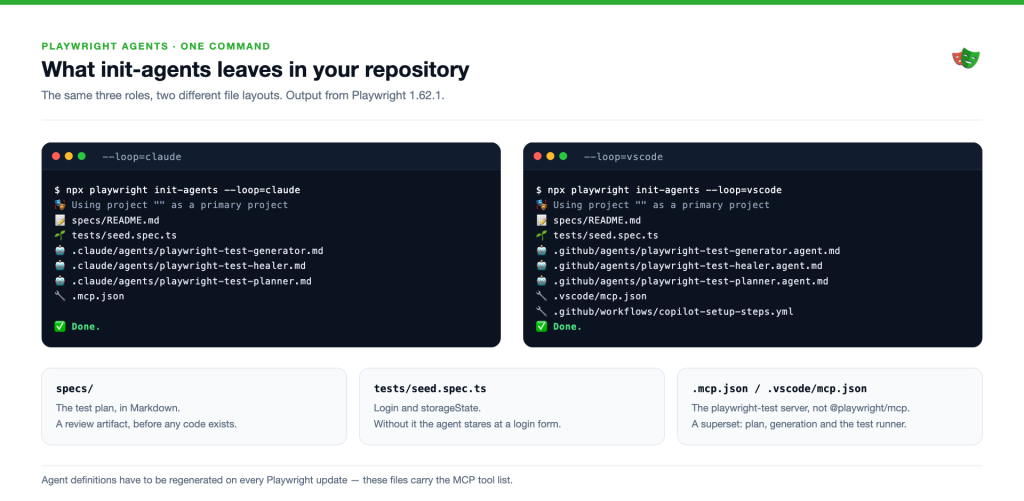
Running the command gives you three agent definition files (one per role), a Playwright MCP server config, a specs/ directory with a short README, and – if you don’t already have one – a seed test. The exact paths depend on the --loop value you picked: Claude Code gets its definitions in .claude/agents/ plus an .mcp.json in the project root, while --loop=vscode writes .github/agents/<name>.agent.md and an entry in .vscode/mcp.json. If you’re looking for chat modes under .github/chatmodes/, that’s the legacy path now, available behind a separate –-loop=vscode-legacy flag. The repo ends up with specs/ for the Markdown plans and tests/ for the generated tests, tests/seed.spec.ts among them.
Next steps
Generating the files is only half of it, though, because nothing runs by itself.
You invoke the agents from your client’s chat – in Claude Code by asking for the planner, generator, or healer by name, in VS Code by picking one from the chat’s agent list. The order is the one the roles were designed in: the planner writes a plan into specs/, you review that Markdown, the generator turns the approved plan into tests under tests/, and the healer only enters once something is already failing.
The docs add one requirement: agent definitions should be regenerated on every Playwright update, to pick up new tools and instructions. This isn’t cosmetic, because those files contain the MCP tool list, and that list changes between versions.
If you’re already on Playwright 1.62 or newer, there’s another convenience: the MCP server and the CLI now ship in the same package as Playwright, so you can run them with npx playwright mcp and npx playwright cli without a separate install. That’s the default route today and the one to start with. Alongside init-agents, there’s now npx playwright init-skills, which installs Playwright’s skills for your client (--loop=claude or --loop=agents). It’s a separate mechanism from the agent definitions and easy to miss, because the docs give it far less room.
Seed test
One of those files deserves more attention than it usually gets: the seed test.
It looks like an empty placeholder, but in practice, it decides whether the agent sees your application at all and what style it writes its tests in. It’s also where the login goes. The planner and generator explore a live application, so if your app sits behind an auth screen, the seed test is what hands them a signed-in session via storageState. Without it, the agent will spend its entire run staring at a login form.
How good is the generated code?
This is the heart of it, because it’s the question I get most often.
From where I sit, if you don’t give the subagents rules to follow, the quality of the generated code will be mediocre. And not in the sense that the code won’t run. In the sense that it will run in a way you don’t want in your repository.
This isn’t only my observation, either. The Playwright docs themselves note, right under the generator, that generated tests may contain initial errors that the healer is then supposed to fix (Test Agents).
The second signal for the same thing sits in the generator’s definition. The example the model learns from is in playwright-test-generator.agent.md, in the code generation section:
test('Add Valid Todo', async { page } => {
  // 1. Click in the "What needs to be done?" input field
  await page.click(...);

  ...
});
page.click() is the old selector-based action API, not a locator – the Playwright docs mark it as discouraged and point you to locator.click() instead. If you’re wondering where the unwanted constructions in your repo come from, this is one of the places they start.
The most painful case I ran into, though, involved the healer. Instead of fixing a test sensibly, the agent would sometimes just delete an assertion or drastically simplify the scenario. The test went green, the metric looked great, and the value of that test dropped to roughly zero. And this isn’t an anecdote, it’s a consequence of what the healer has written into its own definition – I take that apart in part two, along with the list of rules that reined the problem in for me.
To summarize: agents are great at speeding up the first pass and gathering evidence. They don’t replace human review on business-critical paths. And let me say plainly where I stand today: I still treat agents as something to experiment with, not as a part of my process I’d rely on. MCP and the CLI have proven steadier for me – there I see exactly what I’m getting, and I decide what to do with it.
Playwright MCP
Playwright MCP is a server that gives the model a set of tools for driving a browser: navigation, clicking, typing, and taking accessibility tree snapshots. If that last term is new to you, the accessibility tree is the page as assistive technology sees it – roles, names, and states, no markup or styling noise – which makes it both far cheaper than raw HTML and far more useful to a model than a screenshot.
The model isn’t guessing from source code; it operates on a page that’s actually running. That’s why the locators it produces are usually sensible and role-based. The point isn’t that CSS is bad, because a selector built on a stable attribute or a data-testid is perfectly fine. The point is that a model that can’t see the page reaches for the first selector it finds in the source, and that one usually falls apart on the first structural change.
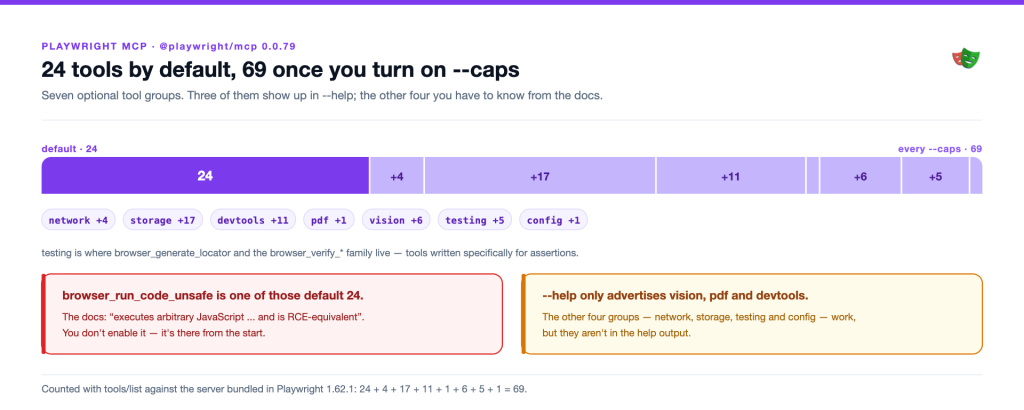
In its default configuration, the server exposes 24 tools: navigation, clicks, typing, accessibility snapshot, searching within a snapshot, screenshot, dialog handling, request inspection, and a few smaller ones.
Turn on every optional capability (capabilities in the docs) – network, storage, devtools, pdf, vision, testing, and config – and you’re at 69. All seven go into --caps, but don’t go looking for them in --help: it currently advertises only vision, pdf and devtools. Look at testing in particular: that’s where browser_generate_locator and the browser_verify_* family live, tools designed specifically for writing assertions. These numbers are for @playwright/mcp version 0.0.79, and the list grows release to release, so treat them as a transient state rather than a constant.
Playwright MCP in practice
Practical uses that worked for me:
- Exploring an application and pulling the HTML structure of a specific page.
- Generating page objects for a new view.
- Quickly prototyping a scenario before I sit down to write it properly.
And an important note, because there’s an easy shortcut to make here: Playwright Agents do run on MCP, but not on the server discussed above. init-agents configures a bundled server named playwright-test, launched via npx playwright run-test-mcp-server. On top of the same browser tools it adds tools the standalone @playwright/mcp doesn’t have: saving and submitting a test plan, writing a test file, and listing, running, and debugging tests through the test runner.
In other words, it’s a superset, not the same package.
Playwright CLI
And now the tool I find the most interesting of everything that’s appeared in the last few months.
Quick note in case the acronym is new to you: CLI stands for command line interface. Instead of clicking in a GUI or calling tools over a protocol, you work in a terminal and type commands.
Playwright CLI (the @playwright/cli package) is a command-line interface for browser automation, designed specifically for coding agents.
In practice, it looks like this:
# global install — in a project the same thing lives under `npx playwright cli`
npm install -g @playwright/cli@latest
playwright-cli install-browser

# install the skills for your agent
playwright-cli install --skills

# an example session
playwright-cli open https://demo.playwright.dev/todomvc/ --headed
playwright-cli snapshot
playwright-cli fill e8 "Write tests"
playwright-cli press Enter
playwright-cli screenshot
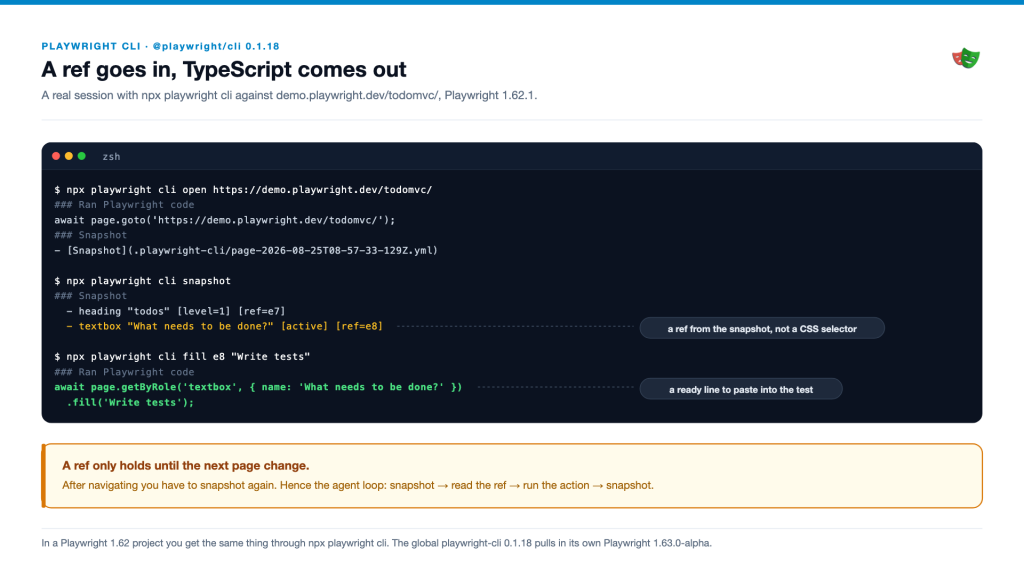
Note the e8. That’s a compact reference to an element, taken from the accessibility tree snapshot that was written to disk. No long CSS selectors, and no full tree in the model’s context. The numbers are illustrative, of course: the same element will get a different ref on your machine. More importantly, a ref only holds until the next page change, so after navigating, you have to snapshot again. The agent’s working loop, therefore, looks like this: take a snapshot, read the ref you need from the file, perform the action, take another snapshot.
And here’s something that matters more for writing tests than the token count does: every action you perform through playwright-cli returns the corresponding Playwright code in TypeScript. You don’t have to guess how the agent hit an element or retype it from memory, because you get a ready line to paste into the test.
It’s also worth knowing that the skill shipped with the CLI is not just a command index. In references/test-generation.md you’ll find a complete “plan → generate → heal” workflow: explore the app, write a spec, generate the tests, diagnose the ones that fail — all of it built on --debug=cli and attach, with no MCP and no subagents. Those are the same three roles as Playwright Agents, moved down into the CLI layer and written in Markdown instead of agent definitions.
Traps
Before this tool goes anywhere near a company pipeline, check the version numbers: @playwright/cli is currently at 0.1.x, while Playwright itself sits at 1.62.1. This is a pre-1.0 package, so commands and flags can change between releases. Pin a specific version in CI rather than riding @latest.
There’s one more trap here. The examples above use the global playwright-cli, because that’s how the official skills are written, but it isn’t the same binary as the npx playwright cli in your project: @playwright/cli 0.1.18 pulls in its own Playwright at 1.63.0-alpha. If you care about one runner and one browser version across the repo, use the bundled variant and keep the global one for experiments.
Microsoft’s own docs put it honestly: MCP and the CLI aren’t competitors; they’re complementary tools. MCP still makes sense where you need persistent state, rich introspection, and iterative reasoning about page structure. The CLI wins where the agent has to juggle the browser, a large repository, the tests, and its own reasoning inside a limited context window. The detailed comparison, numbers included, is in part two.
Debugging Playwright tests with AI
The fourth area is debugging, and it’s where Playwright has added the most in recent releases. In short, here’s what you have today:
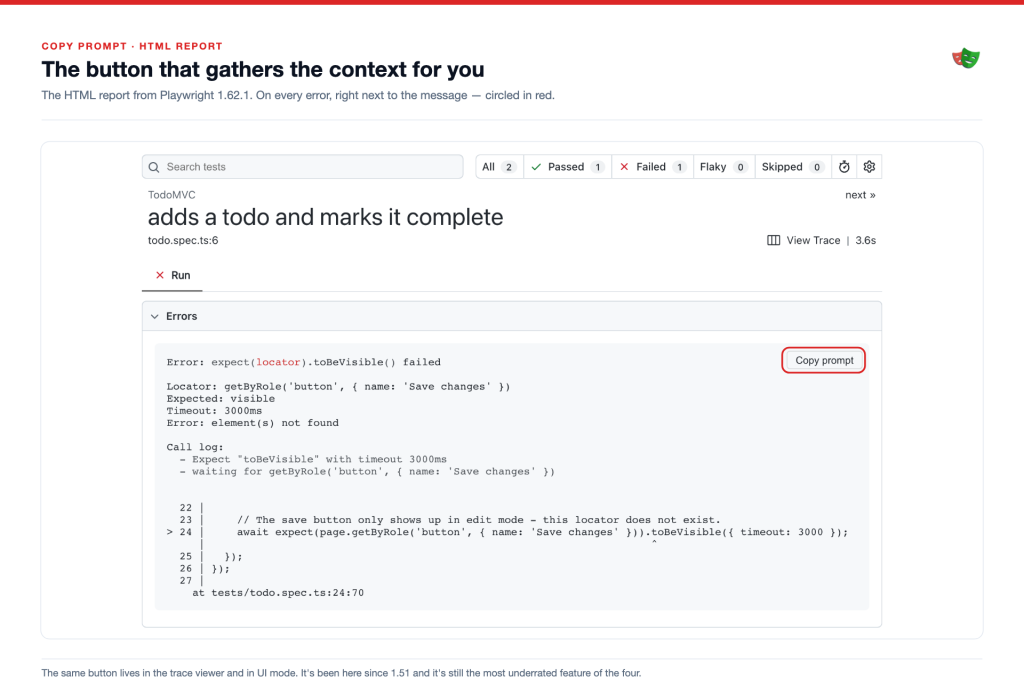
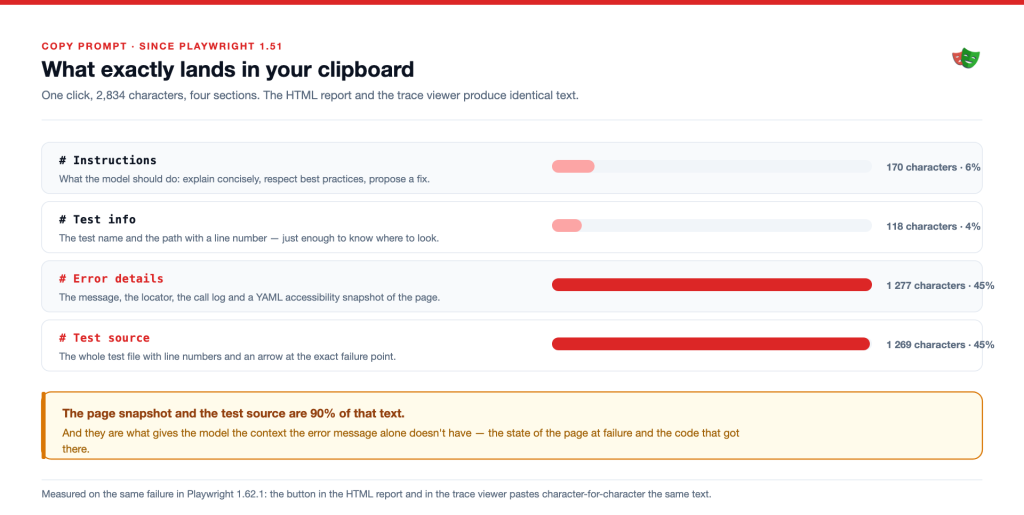
- Copy prompt – on every error in the HTML report, the trace viewer, and UI mode, you get a button that copies a ready-made prompt to your clipboard, with the error message, the test code snippet, and a page snapshot. It’s the simplest and, in my view, the most underrated feature of the lot; it’s been with us since 1.51.
- Fix with AI in VS Code – a sparkle icon next to an error message that analyzes the context and, using GitHub Copilot, proposes a fix directly in the editor.
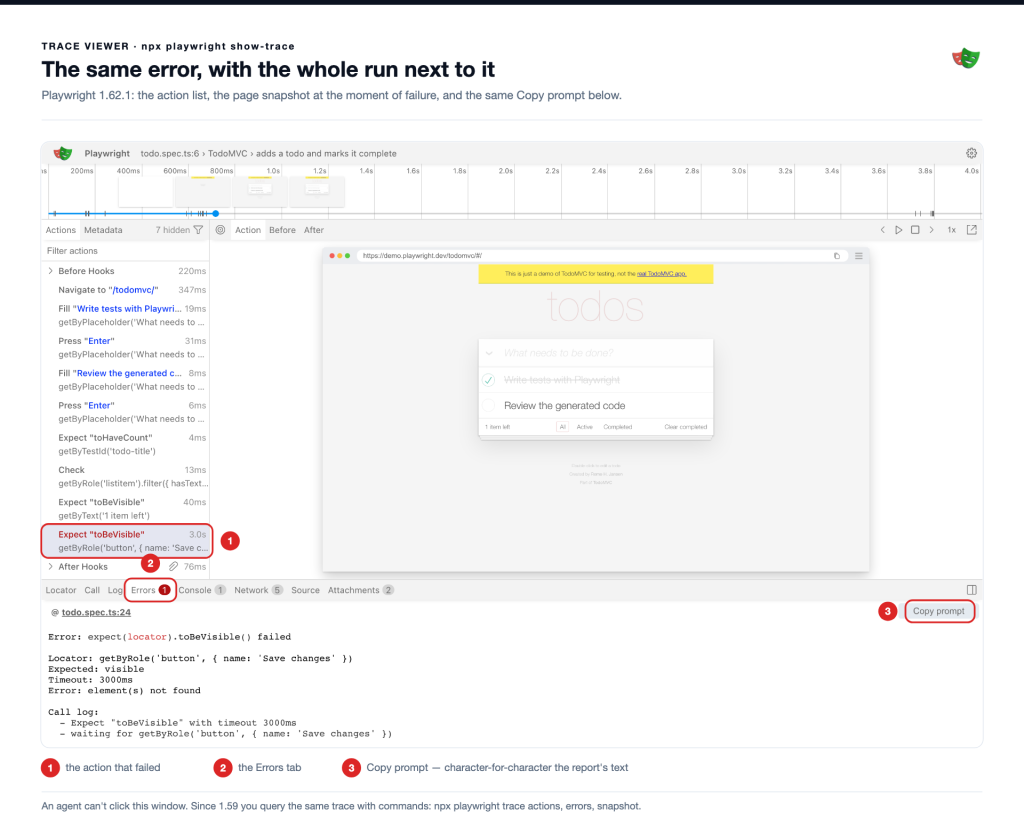
- Trace viewer – still my main debugging tool, and AI hasn’t replaced it. What AI did replace is the tedious job of retyping what I see in it into a chat window.
npx playwright trace– a 1.59 addition that solves a very specific problem: an agent can’t click around the trace viewer GUI, but it can query the trace with commands.--debug=cli– the second 1.59 addition: the test pauses and is exposed as a CLI session that an agent (or you) can attach to and step through against a live browser.
Each of these is good at something different, and each gets its own section in part two.

Testing & QA
Ensure the quality, performance, and security of your software with our testing and test automation services.
Testing&QA offeringWhat it all adds up to
Over the past year, Playwright has gone from “you can hook up MCP” to a complete set of agentic tooling in the box.
The four areas we’ve just walked through share one property: none of them takes review off your hands. Agents speed up the start, MCP gives the model eyes, the CLI fits all of it into a context window, and the debugging tools shorten the path from a red test to its cause. But whatever comes out of them – a locator, a page object, a sketch of a scenario, a healer patch – reaches the repo only through your hands. The model saw the page; it didn’t see your conventions.
In part two, I go a level down: the rules you have to write for the generator and the healer, the healer’s two failure modes on concrete diffs, what MCP really costs next to the CLI, what to keep in mind when you point an agent at a real application, and what debugging a test alongside an agent actually looks like.













Leave a comment