



























In digital products, error and failure messages are integral to the user’s interaction with the software. This content can significantly influence the feeling of a given application. Therefore, understanding how to create messages is crucial not only for designers but also for developers.
When a user encounters a problem, their workflow is interrupted. In this situation, it is worth showing that the problem is easy to solve. A clear error message can significantly reduce the level of frustration. If we help users understand what happened and offer specific steps to fix the issue, users will not waste time and focus on their goal. We also want the user to know that solving problems is simple and fast. We will improve the user’s interaction with the interface by providing effective messages.
Content that shows the product creators care about the user and their experience builds a relationship. If users see that their problems are taken seriously, they are more likely to return to the service. A well-thought-out product translates to positive reviews.
In this article, I will try to present strategies and best practices that can help mitigate the negative impact of errors on users.
Prevention is better than cure
The best approach is to minimize the number of errors users might encounter. Prevention is more effective than reacting to problems, so it is worth investing time and resources during the design and testing stages.
Intuitive interfaces reduce the risk of user errors. Visuals, such as icons and labels, help users understand possible actions.
Consider the following elements during the design stage.
Onboarding
Users who are well-informed about how to use the application make fewer errors. Short guides, tutorials, and hints can significantly improve the system’s understanding and operation.

Constraints
Constraints help users enter only correct data and perform allowable actions, minimizing the number of errors they can make.
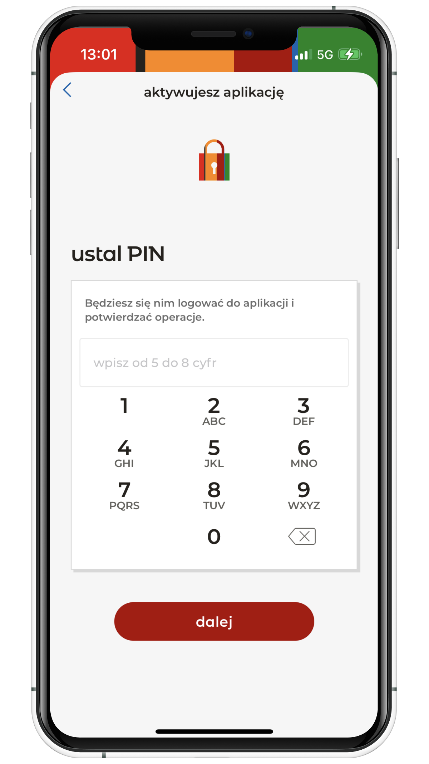
Automatic suggestions and correction
Systems can automatically suggest phrases or correct minor errors. This is particularly useful and improves the user’s interaction with the digital product.

Preventing errors is extremely important, but it is impossible to completely eliminate the risk of their occurrence. Unfortunately, errors are an inevitable part of user interaction with software. It is important to adequately assist the user when they occur.
What does a clear error message mean?
The key to success is properly defining the problem. The user must understand what went wrong. The message should be concise but also contain all the necessary information to resolve the issue. Error messages are elements that users dislike. Improper text can ruin positive experiences.
A well-designed error message should include:
- defining the problem,
- why the problem occurred,
- how the problem affects the user and their further actions,
- how to solve the problem and what can be done to prevent it from happening.
Key principles for designing error messages
In the following section, you will find information on properly designing error messages.

Don’t blame the user
Blaming the user for an error can lead to even more frustration and discouragement. The message should be neutral and focused on resolving the issue. Remember to be polite and empathetic.
Also, remember not to attack users with all capitalized letters or exclamation marks. For example, if a user fills out a form and forgets to enter their email address, avoid using aggressive messages like “Field is required!” or ” FIELD IS REQUIRED. ” Try using a nicer message: “Please enter your email address.” Such a message is more understandable and helps the user focus on correcting the error without additional stress.

Be specific and to the point
Error messages should precisely inform the user about the problem. Too general messages do not give users enough information to take further steps. Avoid vague statements in favor of more detailed descriptions that help understand what went wrong.

The first message is too general, so the user has no idea where the problem lies or what to do next. Use more detailed messages that provide clear guidance about the problem and the steps that can be taken to resolve it.

Use plain language and avoid technical jargon
Write in an understandable way to the average user and avoid technical jargon. This is very important when designing messages that every user can understand. Do not use abbreviations or terms that are only familiar to developers.
Remember, plain language partially contributes to digital accessibility. Read more about simple language on the government website.
Messages should be written in plain and clear language. Whenever possible, avoid overly general statements and mysterious numbers, such as error 1020.

If we must use an error code, we can include it in the message. But remember, explaining what this means to the user is important.
404: but that’s clear!
Also, when we encounter well-known error codes such as “Error 404: Page not found” or “Error 500: Internal server error,” we should remember that users have different levels of technological knowledge. It is best not to assume that everyone understands such codes.
Instead of: “Error 404: Page not found.”
Use: “We couldn’t find the page you were looking for. Check if the URL is correct, or return to the homepage.”
Instead of: “Error 500: Internal server error.”
Use: “There is a problem with our server. Please try again in a few minutes. If the problem persists, contact us at [email protected].” Our messages should be written so everyone can understand, regardless of their technical knowledge.
What if the target group has a narrow specialization and specific needs?
In applications dedicated to specialized groups of users, such as doctors, avoiding technical-specific terminology can be challenging. Users in these fields are often familiar with specific terms and expect to see them in the interface. However, ensure the terms fit the context and match the users’ level of expertise. Ensure that the messages use the common language used in a particular industry. Avoid abbreviations and terms that could be confusing. If we need to use specific terms, provide explanations or definitions where possible.
Let’s throw away negative words
Content should be as neutral as possible. Negative words and phrases can only worsen things, increasing the user’s irritation. Avoid negative terms such as “bad,” “critical,” or “unacceptable,” as well as jokes, slang, and abbreviations that can be misunderstood.
Instead of writing “Critical error!”. Describe the reason: “There was a problem with the operation. Please try again or contact technical support.”. Negative phrases are discouraging and can also make users feel guilty or incompetent.

Jokes and slang can be confusing and unprofessional. Instead, use clear and professional messages.

Support users
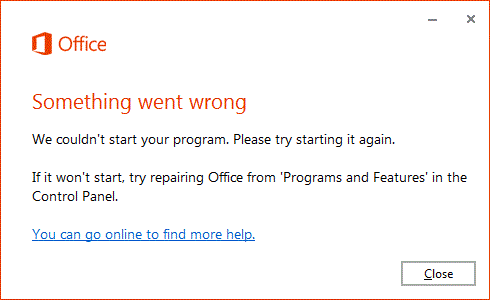
Error messages should inform the user about the problem and suggest what the user can do to fix it. This way, we help the user get back to work quickly.
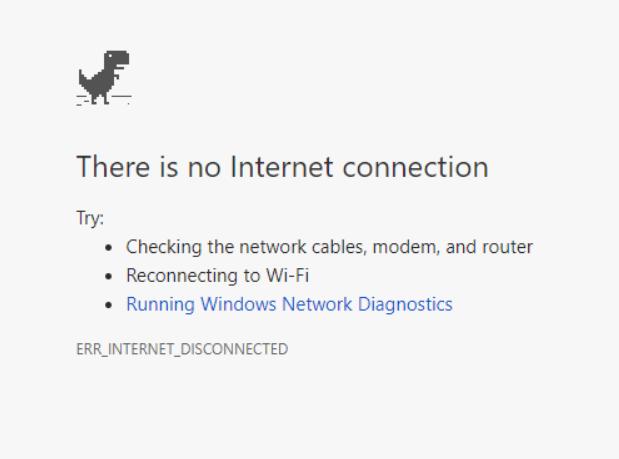
If the error message is unclear or the problem is not resolved, users should be able to contact technical support.
Messages should be visible
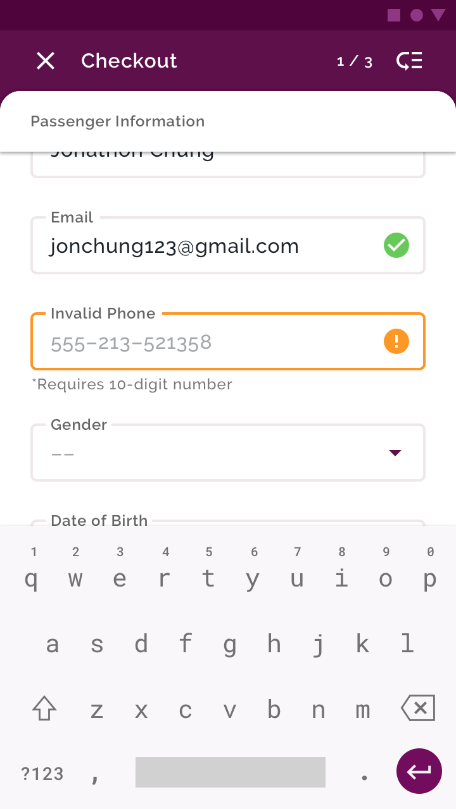
Error messages should be easy to spot and read. Using distinctive colors and placing them appropriately on the page helps to convey information effectively. Use colors that stand out clearly from the rest of the interface. Red and orange are commonly used to highlight errors because they attract attention and are easy to notice. To make the message readable, provide adequate contrast between the text and the background. For example, red text on a white background or white text on a red background.
Place error messages where the user is sure to notice them. Ideally, they should be near the element that caused the error. A bad example would be placing the error message at the bottom of the page, where the user can easily miss it. Ideally, the message should appear directly next to the form field where the error occurred.
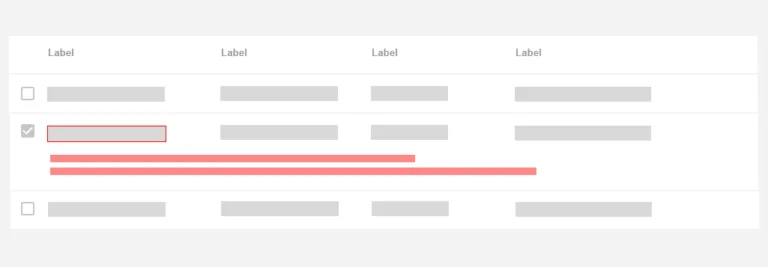
For global errors, it is a good idea to place the message in a fixed location, such as at the top of the page, where it will be visible regardless of scrolling. Instead of displaying the error message randomly on the page, it is better to display it in the top bar or in the middle of the screen.
What if red is the primary or secondary color in the visual identity?
If red is the primary color in the visual identity, we must find another way to make error messages stand out and readable. We have to remember not to break the consistency of the design.
We can add complementary colors, such as yellow or orange, in this situation. Another solution is to use warning icons that indicate an error.
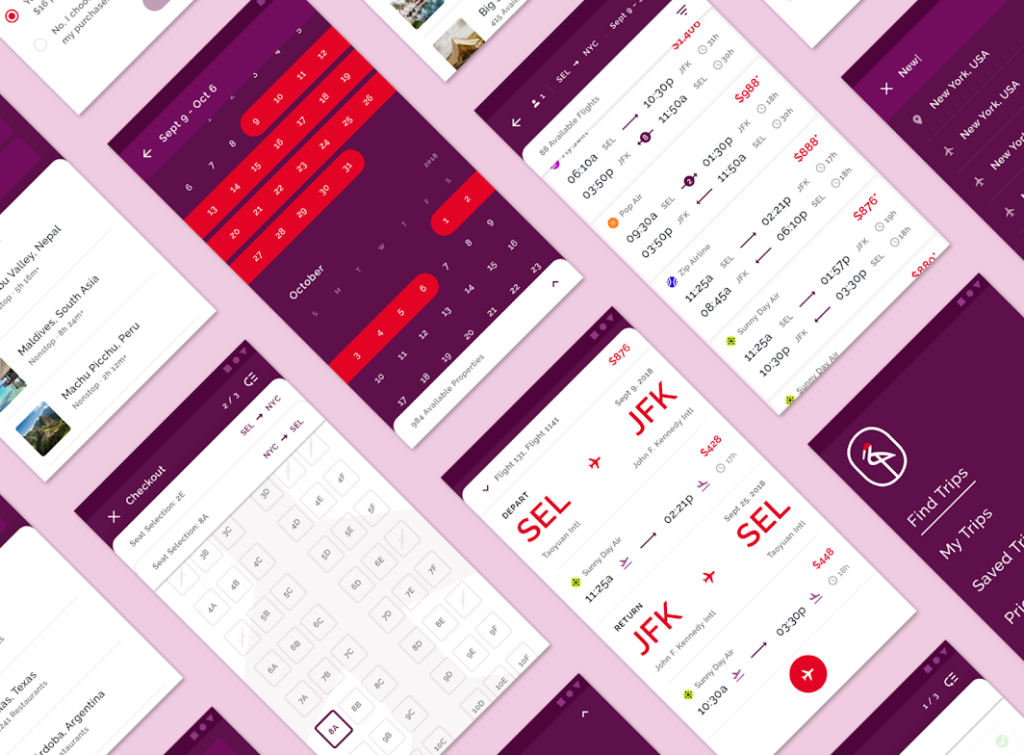
An example of this approach is the Crane app, which uses orange to highlight errors. Red is a secondary color, so a red error, in this case, would not stand out enough from the surrounding UI and could be misread.
Display time
An important aspect is the display time of the message. Error information should remain on the screen long enough for the user to read it calmly. The messages should stay visible for serious errors until the problem is resolved.
Avoid displaying errors prematurely
Presenting errors too early can cause additional frustration and confusion for users. To avoid this, it is worth including strategies such as:
- real-time validation,
- delayed message display,
- clear hints.
Introducing techniques for gradually revealing information (progressive disclosure) effectively minimizes negative experiences related to errors. It involves providing users with only the information they need at that moment. Regular interface testing with real users helps identify moments when errors are displayed prematurely.
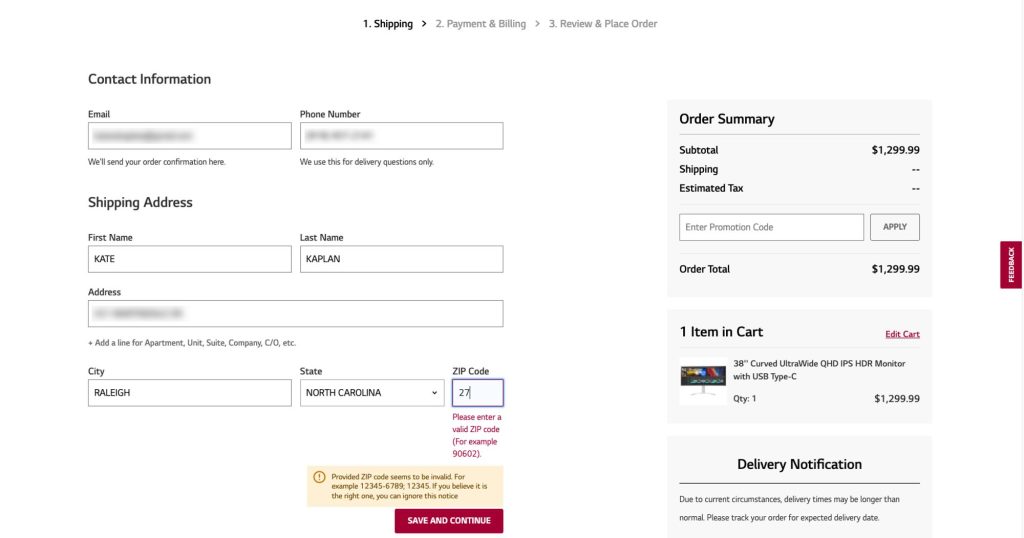
Avoid displaying error messages until the user has finished filling out a particular field and moved on to the next one. Showing error messages during typing can feel like an unjustified reprimand.
Be consistent
We should use the same terms and phrases throughout our app to avoid confusion. For example, if we use the term “password” in one place, we should not change it to “passkey” in another place. Keeping the terminology consistent helps users quickly understand a message without thinking about its meaning.
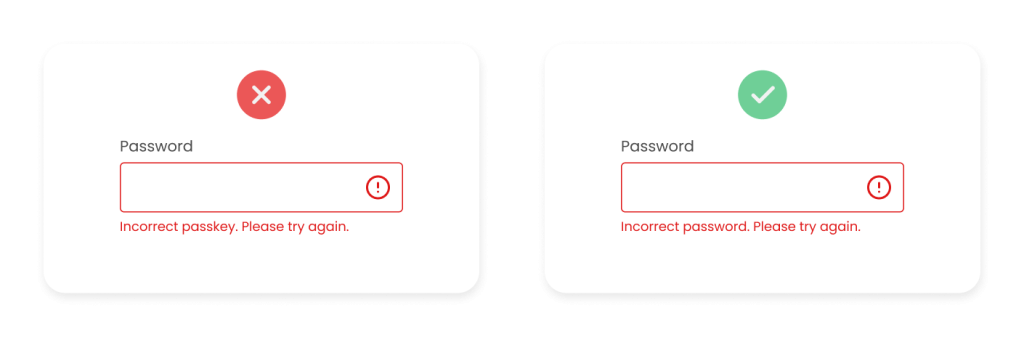
Let’s also maintain consistent text formatting in error messages. This includes font size, colors, bold, italics, etc. Consistent formatting makes messages easier to recognize and understand. Maintaining consistent terminology and visual layout also reinforces the application’s professional and well-thought-out image.
Testing
Observe how users respond to messages. Review and update error messages regularly based on new information and feedback. This process should continue throughout the product lifecycle to adapt messages to changing user needs and expectations.
Not only errors
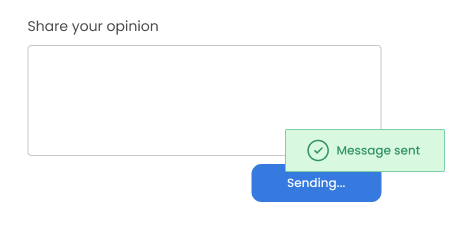
In some situations, the user needs confirmation that a given operation has been completed successfully and everything went according to plan. This is especially true for processes where users may have doubts about the status of the performed action, such as placing orders or sending forms.
The role of humor
Humor in error messages is a controversial topic with many opinions. Depending on the context and how it is used, humor can have both positive and negative effects.
When used appropriately, humor can help build a positive impression of a brand and make interactions with the app more enjoyable. Remember that different people can interpret humor in different ways. What may be funny to one person may be inappropriate or confusing to another.
When to use humor in error messages?
Humor can be used in less critical situations where the error does not significantly impact the application’s functionality or security. Examples include messages about minor issues, such as a temporary lack of internet connection or a lack of content at a given link.
Below is a message from the Twitch platform. The message is consistent with the brand image, a little humorous but not overly cute or annoying.
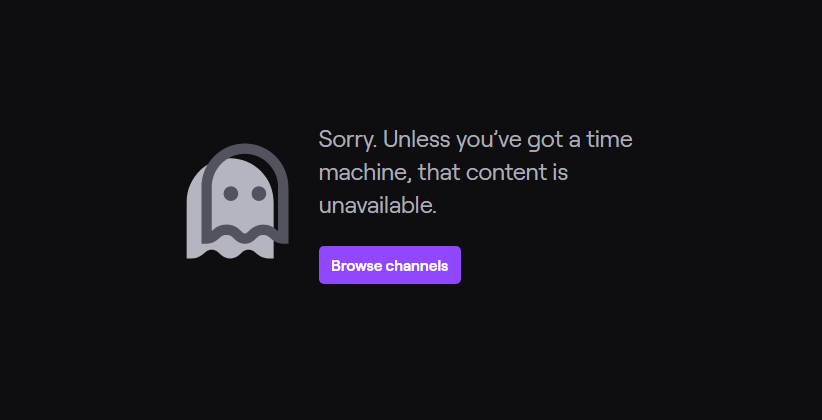
If a brand is known for its relaxed and friendly tone, humor can be consistent with its image and well-received by users. Before introducing humorous error messages, test them on the target group and gather feedback to ensure they are well-received and understood.
Checklist
When designing messages, keeping a sheet or other type of document in which we will document texts and changes is worth it. It is worth numbering errors, which makes it easier to navigate through the application content. The ideal solution is to create a checklist that we can look at while writing messages. Completing best practices and sharing them with the team will be valuable and make work easier.
Here is an example checklist:
- Describe the problem in simple and understandable language. Use full sentences.
- Explain what caused the problem.
- Avoid overly general statements.
- Explain the solution to the problem. If it requires several steps, provide a link to a help page with detailed instructions.
- Offer support or contact technical support.
- Avoid technical terminology and write in the user’s voice.
- Use friendly and understandable messages.
- Do not blame the user for the error. Avoid text written in capital letters and exclamation marks.
- Check if the message is easy to spot.
- Design content consistent with brand values and tailored to the target group. Remember the appropriate style and form of communication.
- Check if the messages in the product are consistent not only in terms of content but also visually.
It is worth making our list, which we will use for the needs of a given client, depending on the needs. We should also enrich the list with examples of texts used in our product.

Summary
In this article, we’ve discussed a few rules for creating error messages. Properly designed content informs about the problem, guides the user to the solution, and minimizes frustration. Effective error messages can also strengthen positive relationships between users and the brand.
We should also remember to integrate texts with the user interface as early as possible. This allows for the creation of a consistent and integrated experience. When texts are designed simultaneously with UI elements, their formatting and display can be better adjusted.
Another important aspect is testing messages in a real environment and regularly updating them based on user feedback. This allows us to adapt our content to the needs and expectations of the audience.
Bibliography
- Error-Message Guidelines (nngroup.com)
- Hostile Patterns in Error Messages (nngroup.com)
- The ultimate error message UX writing guide (plus examples) (theuxgal.com)
- Prosty język – Dostępność cyfrowa – Portal Gov.pl (www.gov.pl)
- Poznaj 10 zasad prostego języka w Centralnym Ośrodku Informatyki (www.gov.pl)
- Book „UX writing. Moc języka w produktach cyfrowych”, Wojciech Aleksander
- How to Write Error Messages: Faster, Stronger, Better – Technical Writing Tools (ihearttechnicalwriting.com)
- Tips for UX Writing – UX Magazine
- How to Design Inline Editing and Validation in Tables – UX Design World (uxdworld.com)













Leave a comment