



























Data is said to be the gold of the 21st century. Enterprises base their marketing and sales strategies or new product development on it. Our customers can provide valuable information about our services and products, and that’s why companies are looking for tools to help them obtain this data. One solution that can help collect, store, and analyze customer feedback data is the Salesforce Survey.
This tool makes it easy for us to collect important data through surveys. In that article, I will present its use cases, configuration, and operation.
What is the Salesforce Surveys?
Salesforce Surveys has been with us for a few years now, and its first version was launched during the Spring ’18 release. Initially, it was only available for the Health Cloud product. The main purpose of Salesforce Surveys is to create and send personalized surveys and to record the responses in the system. In addition, based on the license we have, which will be discussed later in this article, additional features are offered, such as:
- Create or update records based on the provided answers.
- Enable surveys after a chat on the website.
- Embed surveys on the website.
- Analyze responses using Sentiment Insight, a machine learning-based tool, to assess customer sentiment and gain insights to improve it.
- Create surveys using AI.
- Capture responses from partially completed surveys.
Surveys are hosted on the Experience Sites, allowing us to send out invitations in the form of links. We can also set their individual parameters, such as the expiration date of the invitation, the need to authenticate the responder, and the uniqueness of the link in order to relate the response to the Contact or Lead record in Salesforce.
Configuration
The main area of our work with surveys is the Survey Builder tool, which is divided into three core sections. To access Salesforce Surveys, we first need to enable Salesforce Surveys in our Salesforce instance. To do this, go to the Setup -> Survey -> Survey Settings.
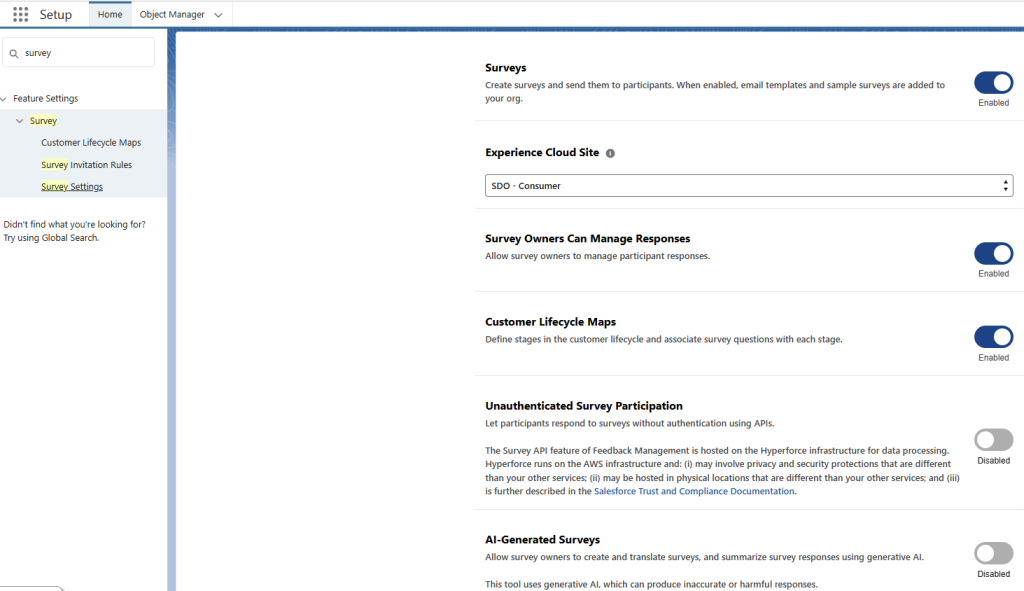
Let us discuss the three sections mentioned in Survey Builder.
Build
The first is the Build section, which allows you to design surveys. To add pages and questions, we can apply dynamic paths, that is, display particular elements based on previous questions’ responses.
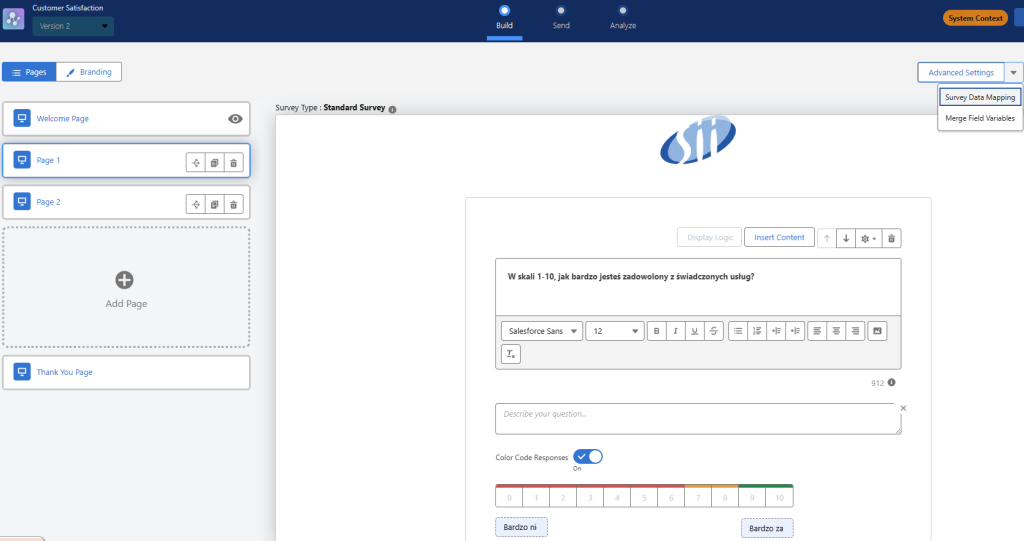
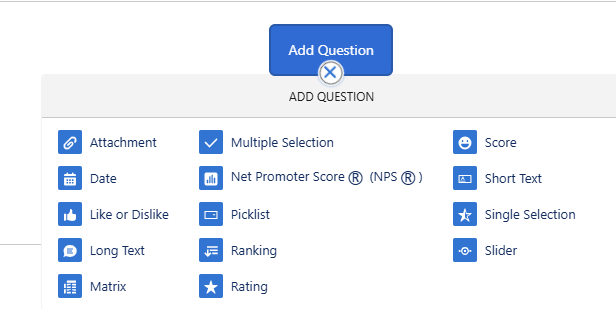
Questions can have different types of answers:
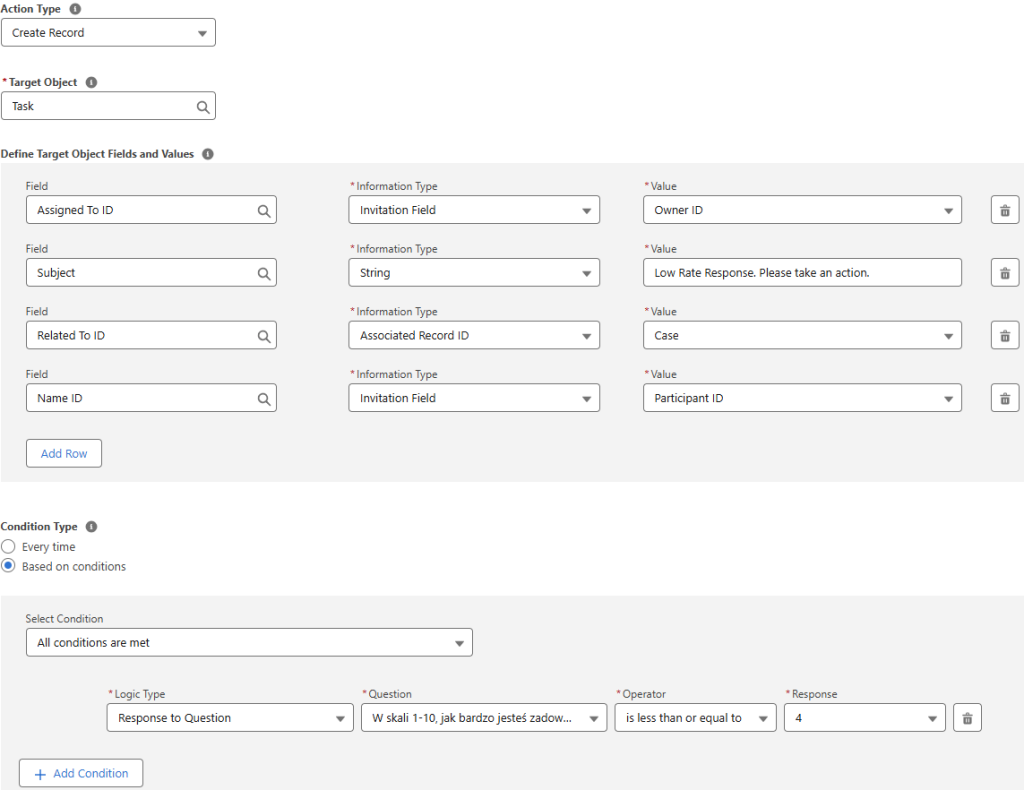
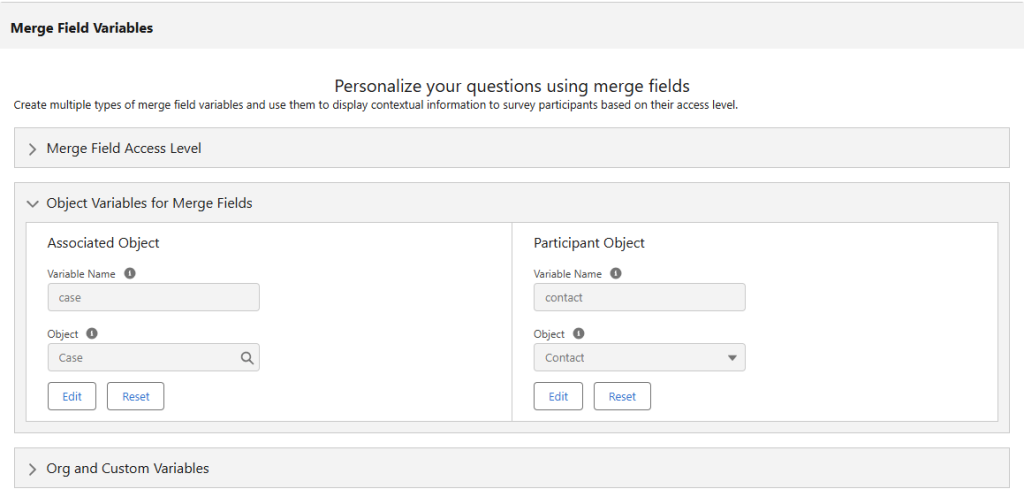
The Feedback Management license in this section allows us to take action based on the answers (Fig. 4) and to place dynamic fields in the survey to personalize it (Fig. 5).
Send
In the Send section, we have two basic options: generate a QR code or link or send the survey via email.
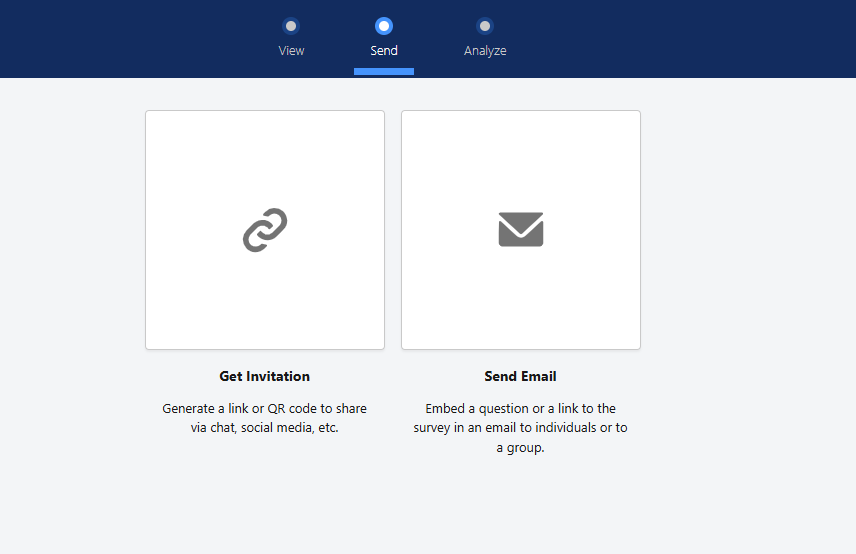
Link or QR code
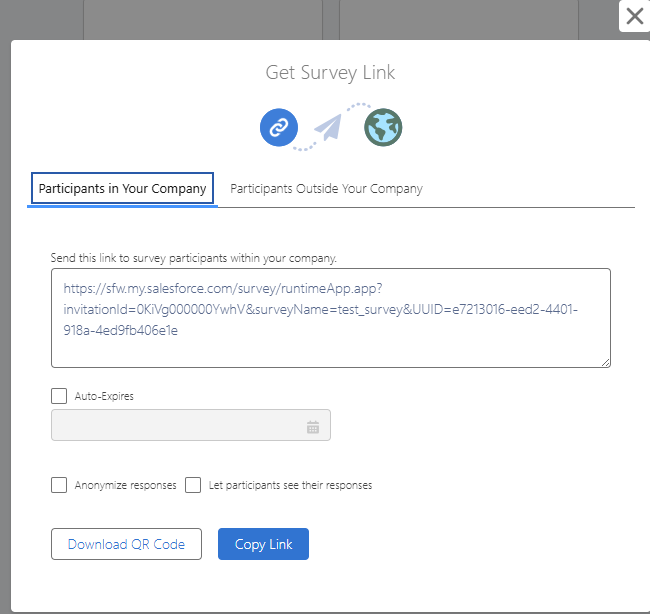
This is what the QR and link generation window looks like. It can be generated for users in the Salesforce instance or for external attendees. In addition, we have the ability to set an expiration date for the survey to anonymize responders and allow them to view their responses.
In the window where we send the survey via email, we first need to specify what content of the survey we would like to include in the email message. It can be either a nested button leading to all questions or a single question nested directly in the email message.
After content selection… we have another choice to make 😊
The recipient can be either a single record or a list of records. If a single record is sent, we proceed to the record selection and add content to our message. If you choose mass sending, we proceed to the following step:
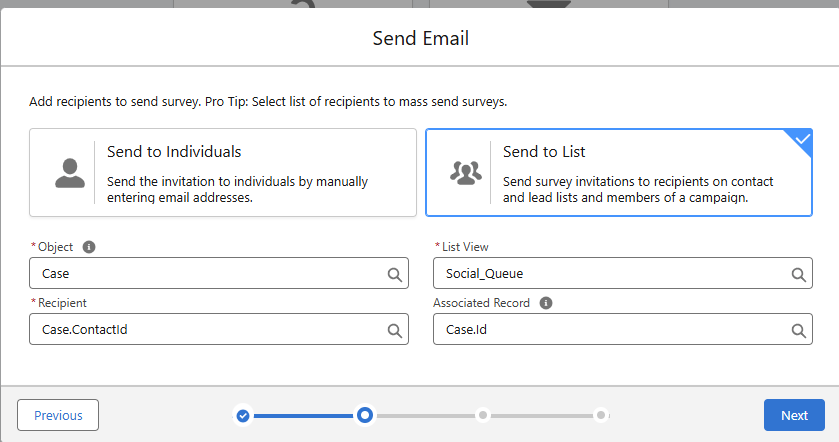
Send to List based on the List View of the particular object. For example, we want to send a survey to all customers who have opened a Case in the last month.
- Object – the object that is the source for the filtered records from which we will get the recipients.
- Recipient – object, the source for the filtered records from which we will obtain recipients.
- List View – list of records that meet our criteria.
- Associated Record – record to which the survey invitation and potential answers are linked to.
The next step is to define the content of our email:
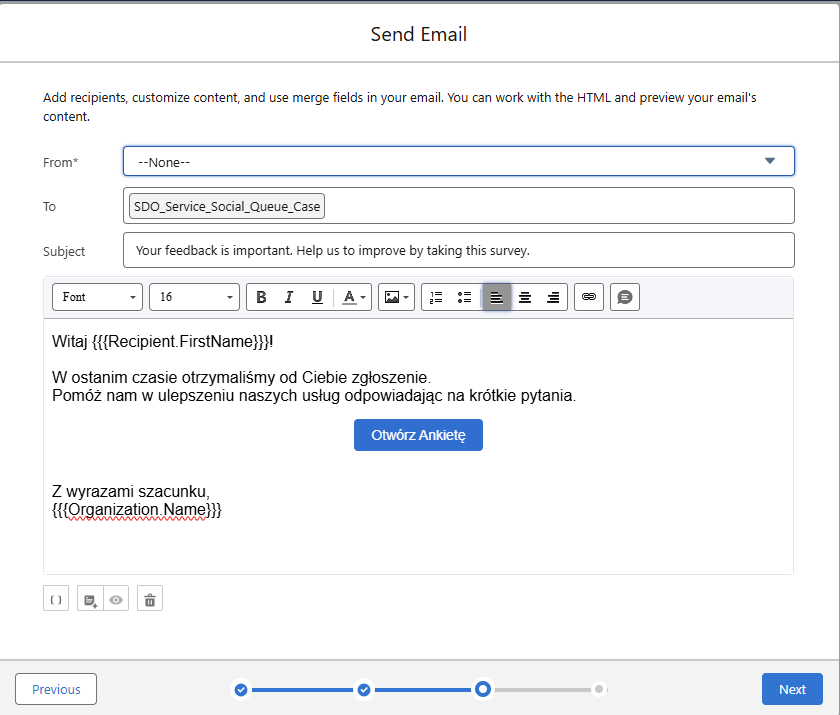
And in the last one, we set up the survey parameters:
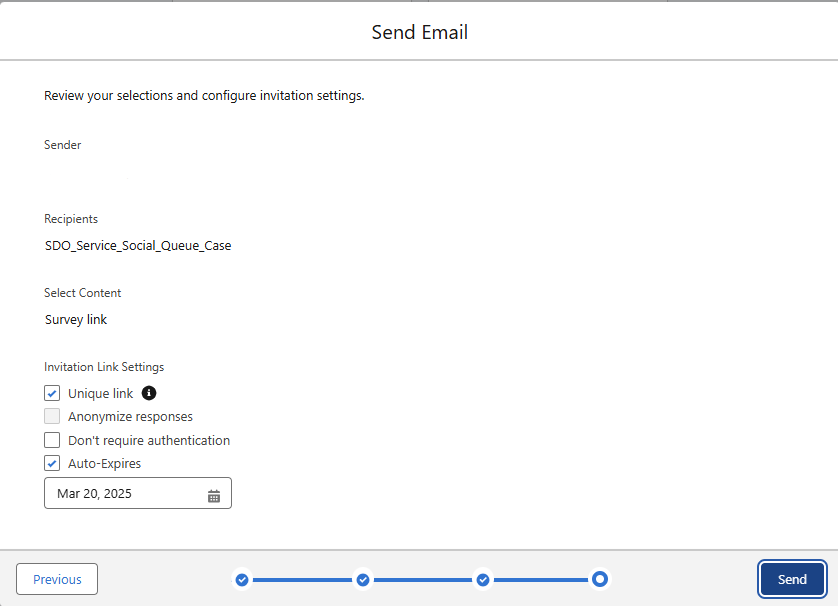
And done, surveys sent 😊
After the surveys have been sent out, we will receive an email with information about the records processed, any failures, and their details.
If we want to schedule the survey’s sending, we can use Flow. If the survey is active, it’s available in the flow as a standard action with the parameters to set. Currently, there is no mass survey sending option from Flow, but we can handle this with a subflow invoked in the Batch action (see Batch Management).
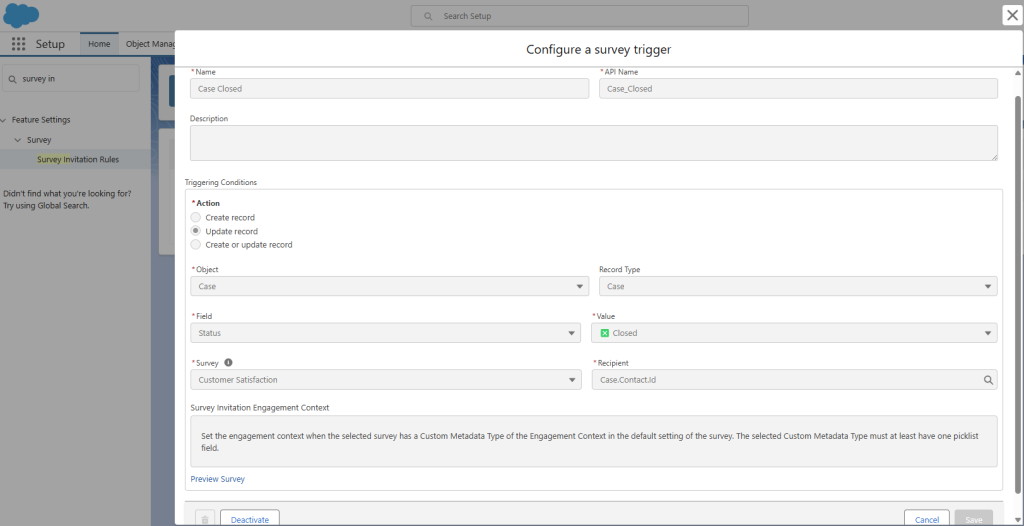
However, the Survey Invitation Rules tool is provided if we want to send surveys automatically based on the action in our Salesforce instance:
Analyze
The last section is the Analyze section, which allows us to view the statistics of a specific survey and the ability to export data. We have access to questions and charts divided by provided answers:
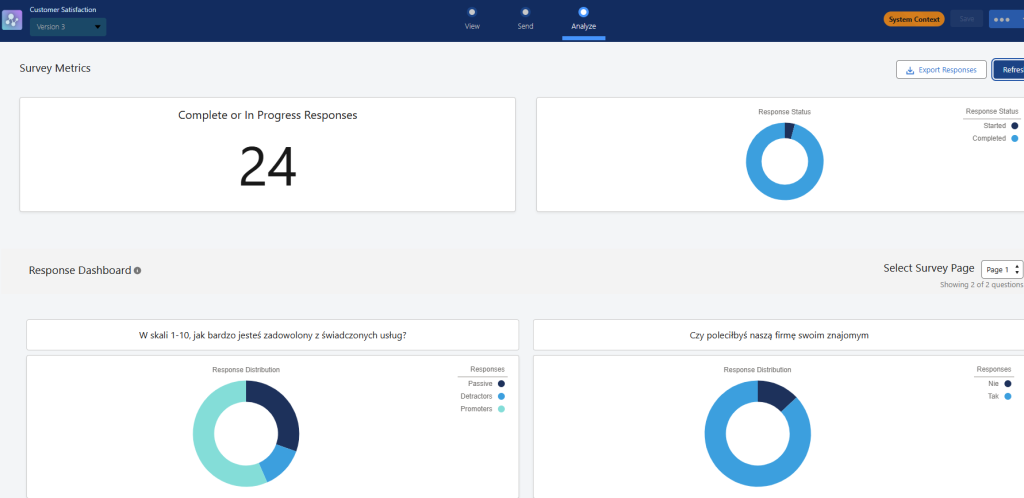
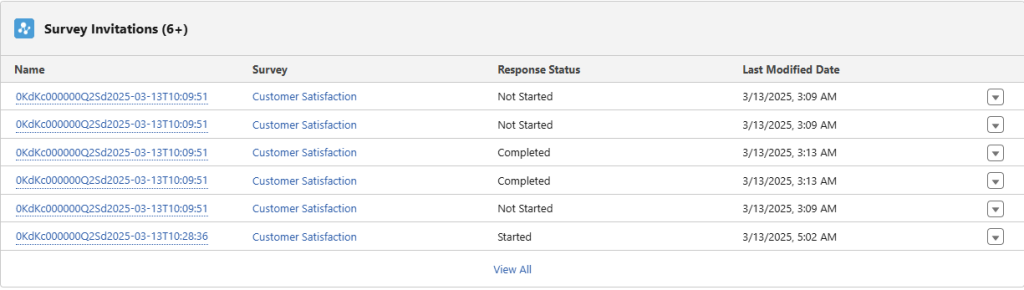
We can create a report using the Survey Invitation and Survey Question Response objects to get more detailed information. To see answers for single records, we can use a related list of participant or related object records:
Licenses
Every Salesforce instance includes the basic functionality of Salesforce Surveys with 300 free responses. The exception is the platform with the Health Cloud package installed, where the basic Survey functionality is included with unlimited responses.
The tool itself includes three licenses:
- Survey Response Pack,
- Feedback Management Starter,
- Feedback Management Growth.
Survey Response Pack
The basic and the cheapest license includes 1000 responses, which, once used, can be purchased as additional packs for $300. The license itself doesn’t extend the functionality of the tool. Only what is included by default in each instance is available, including:
- Create standard surveys.
- Sending surveys to individual records.
- Sending mass surveys.
- Dynamic display of the pages and questions based on the provided responses.
- Embedding the survey and questions in an email message.
- Send the survey via Flow.
Feedback Management Starter
The second license costs $13,500 per month, offers 100,000 responses and enhanced capabilities:
- Nesting of surveys on the website using the Survey Response Connect API.
- Ability for responders to add an attachment to their responses.
- Matrix-type questions – participants choose answers from the same set of options for multiple questions.
- Use of Merge Fields in the survey.
- Dynamically display pages and questions based on fields from a Salesforce record.
- Create or update records based on respondents’ responses.
- Post-chat surveys on the site (Experience Cloud sites only).
- Analyze responses using Sentiment Insight, a machine learning-based tool, to assess customer sentiment and gain insights for improvement.
- Creation of surveys using AI.
Feedback Management Growth
The final license costs $46,000 per month and offers unlimited responses, the same functionality as the previous two licenses, but with the addition of:
- Surveys can be nested on external websites, not just Experience Cloud sites, as is the case with the Feedback Management Starter license
- Capture responses from partially completed surveys.
- Track sent surveys based on the customer lifecycle using the Customer Lifecycle Maps tool.

Summary
Salesforce Survey offers us many possibilities. This is a standard, seated-in-the-platform solution that allows us to meet most of our requirements by using only native tools. In addition, when needed, we can use standard survey objects to create custom processes in the Flow or Apex. Responses are automatically captured and related to customer records in the Salesforce instance, helping us to analyze the data. Because all Salesforce instances come with a basic survey tool and the first 300 responses are free, we can test the tool before we purchase any license, which is a great benefit. With the base license, we can buy the response packs ourselves, which keeps the tool relatively inexpensive.
The downside is indeed the price of the other two licenses, but it should be borne in mind that, in most cases, the basic license will fully meet our requirements. The other two, and the number of responses they offer, are primarily useful when huge invitations are being sent out.
Useful and complementary links
***
If you’re interested in Salesforce, be sure to also take a look at other articles by our specialists.











Leave a comment